The Dispatch Board is a tool to assign and track jobs that your technicians work on. You are able to see the technicians schedule for the day, the status of the technician, and any work that needs to be assigned/scheduled. Lets get into it!
Table of Contents
|
Accessing the Board
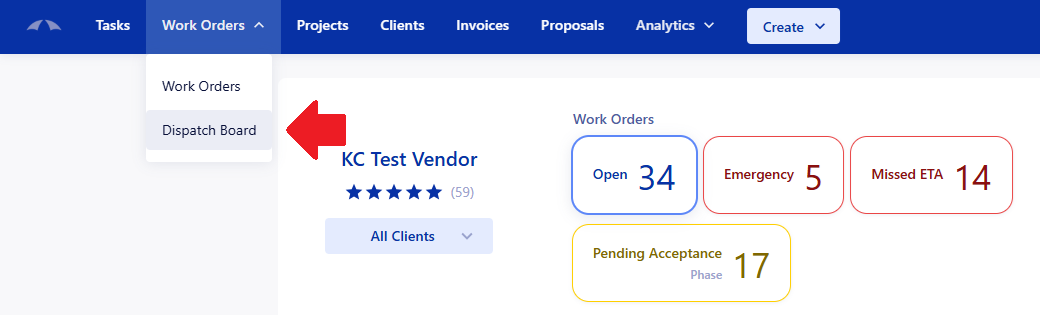
To access the Dispatch Board, your company needs to have the Internal Technician feature and the user requires the Work Order → View Dispatch Board permission. The Dispatch Board can be found in the dropdown menu of the Work Order tab at the top of the app.
Viewing the Dispatch Board
The Dispatch Board displays the work that is assigned to the technicians for the day. On the left side, you see two tabs; Unassigned and Unscheduled.
The Unassigned tab shows any open trip that has been created but has not been assigned to a technician yet.
The Unscheduled tab shows any open Work Order that does not have any trips created.
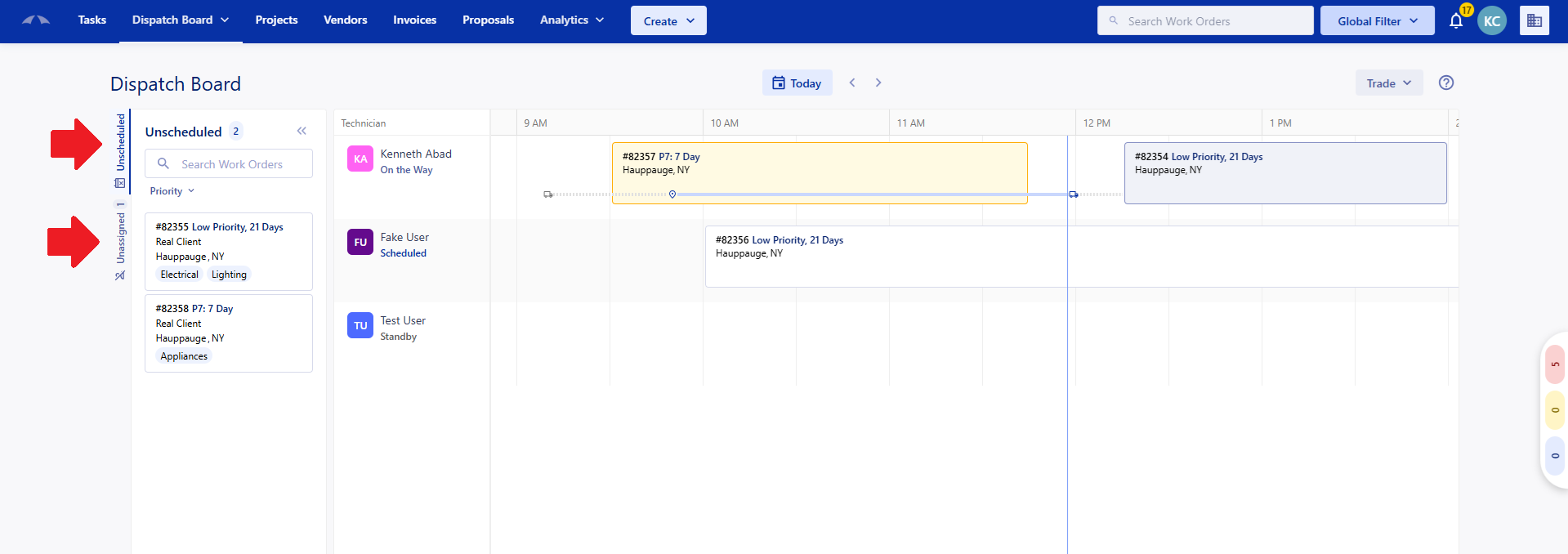
Trip cards on the Dispatch Board show the On the Way time and Clock In/Out times. A truck with a dashed line indicates how long a technician is On the Way, and the location pin with the solid line is how long the technician is clocked in. The vertical line shows the current time when you are on the current day.
You can search for the trips in the Unscheduled and Unassigned tabs. You can search by the following:
- Client (if not for yourself)
- Tracking #
- City
- State
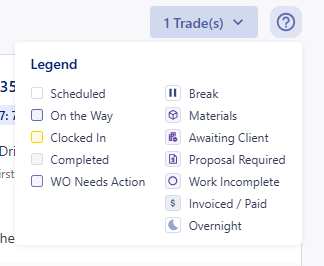
The trips that are displayed on the board are different colors based on the status of the trip, and could have an icon that shows the status of the Work Order for the trip.
These are all explained in the legend on the Dispatch Board, which can be found in the '?' icon next to the trade filter.
Filters
There are 2 filters that affect what shows for your Dispatch Board, the Global Filter and a Trade Filter.
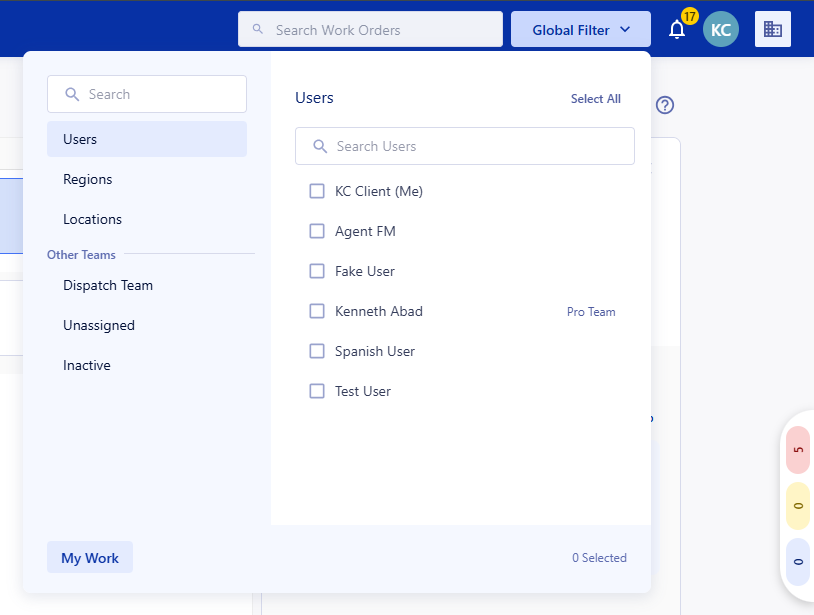
The Global Filter at the top right of the app allows you to select users and teams. The Dispatch Board only shows the Technician Users that are selected in the filter. Having 0 selected will show all technicians.
The technicians are listed on the board in alphabetical order.
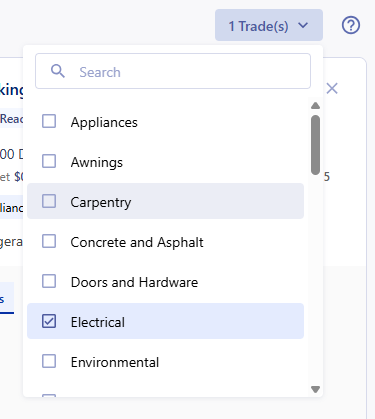
The Trade Filter is below the Global Filter and allows you to select trades to show on the Dispatch Board. The filter only shows technicians that have the selected trade set in their profile.
The Work Orders/Trips that display in the Unassigned and Unscheduled sidebars are also filtered by the Trade Filter. As long as a Work Order matches at least one of the selected trades, the trip will show in the corresponding section of the sidebar.
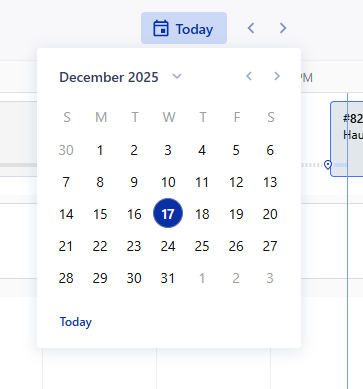
The Date Selector at the top of the Dispatch Board brings you to the date that you click. This shows you any of the work that was assigned to your technicians for that date. The technicians status is not be available when you are not viewing today.
Scheduling with the Dispatch Board
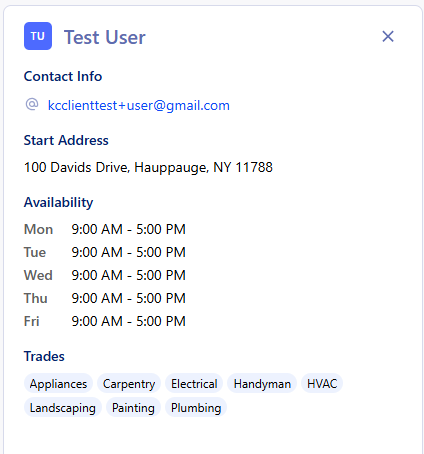
You can manage your technicians day with the dispatch board by assigning or creating trips for them to handle the Work Orders that your company has. You can hover over your technicians to view information about them; their supported trades and schedule. Clicking on the technician opens additional information, such as Contact info, Starting Address, Team.
Ways to assign work to Technicians:
- Drag the trip from the Unassigned tab onto the dispatch board.
- Drag the Work Order from the Unscheduled tab onto the dispatch board.
- Create a Work Order with a trip directly on the dispatch board.
Work Order Information
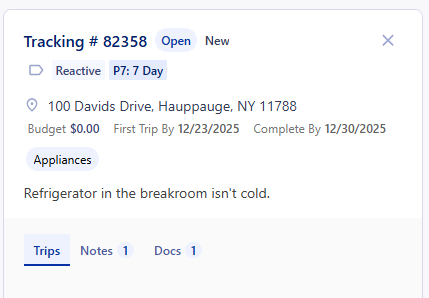
Clicking on the trip in the tab pulls up the Work Order information, allowing you to see any existing trips, notes, or documents. You can add new trips, notes, and documents from this information card as well. These changes will apply in the full Work Order page as well, which can be reached by clicking on the Tracking Number at the top of the information card.
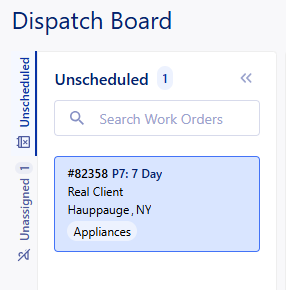 |  |
Trips in the Unassigned and Unscheduled tabs can be clicked and dragged onto the dispatch board. This will set a schedule date/time for the trip, and will assign the technician that the trip is dragged to.
Trips must be set within the SLA's associated with the Work Order. An error will occur if set after the SLA.
You can create a Work Order and trip for a technician on the dispatch board by clicking and dragging on a blank area of the board. Based on what technician and time you click and drag, the Scheduled Date, Duration, and Assigned Technicians will prefill with the information from the board.
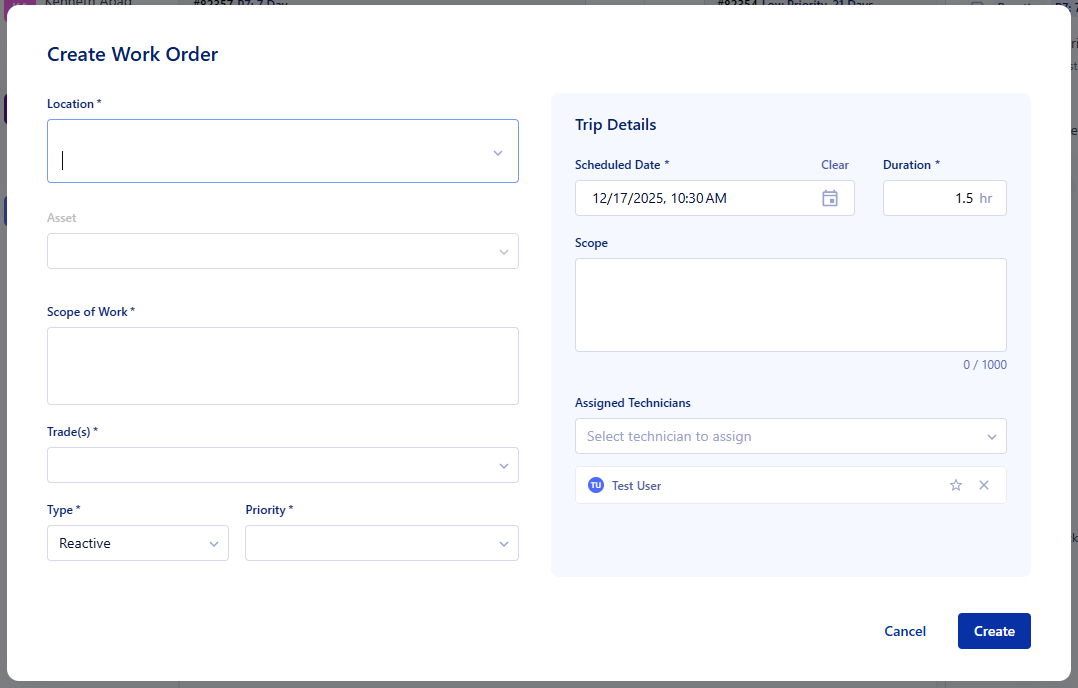
This requires the Work Order → Create permission to make a Work Order from the Dispatch Board.
On the Dispatch Board
Rescheduling Trips
From the dispatch board, you can move trips between technicians and times to reschedule or rearrange who is handling what work.
Moving the start time of a trip opens up the Reschedule screen and require you to input a reason for the change.
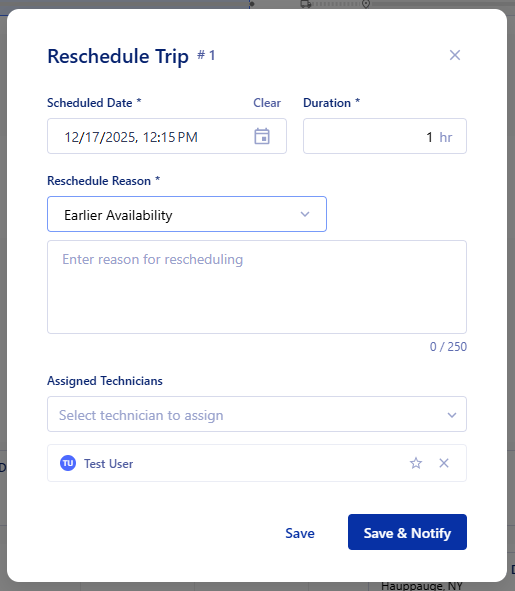
Reschedule Trip:
- Drag the trip on the dispatch board to have a new starting time.
- Input the Reschedule reason and add description.
- Select Save & Notify to update the Client if you are performing work for another company.
- Select Save to not send a notification to the company you are performing work for.
Reassigning Trips
In the case that one of your technicians is unable to do a job, or another technician is available to complete it, trips can be moved from one technician to another. This will reassign the work to the new technician and remove the old technician from the trip.
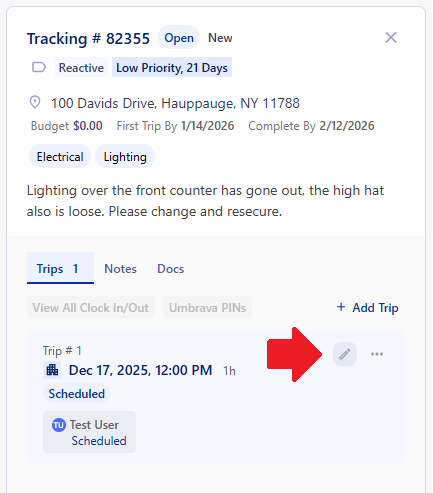
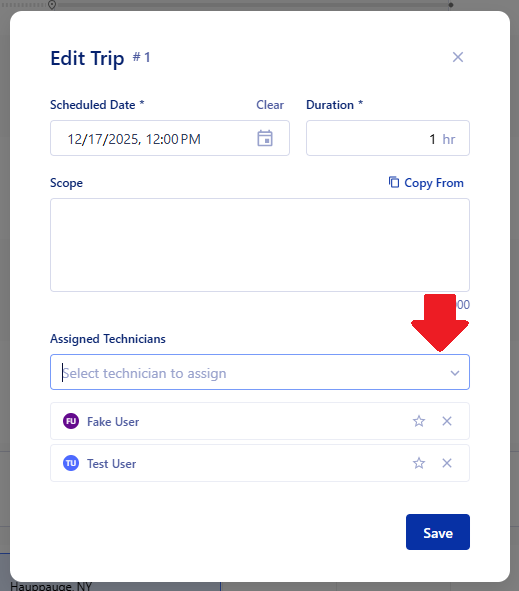
Multiple technicians can be assigned to a trip. The easiest way to do this would be to these steps:
- Click on the trip that you are assigning to multiple technicians.
- Click on the pencil icon in the trip tab to edit the trip.
- Select the technicians in the Assigned Technicians dropdown menu.
- Click Save.
This will set a trip that is visible for each technician in that time slot on the Dispatch Board.
 |  |
Permissions
Work Order → View
- Required for any other Work Order Permission
- Required to view Work Orders
Work Order → View Dispatch Board
- Required to access the Dispatch Board
- Required to create/edit/delete:
- Events
- PTO
Work Order → Create
- Allows you to create a Work Order from the Dispatch Board
- Also requires Manage Trips permission
Work Order → Manage Trips
- Schedule a Trip from the Unassigned/Unscheduled tab
- Move a trip on the Dispatch Board
- Edit a Trip.
- Create a Work Order from the Dispatch Boar
- Also requires the Create permission
Work Order Clock In/Out → View
- Required to have any other Work Order Clock In/Out permission
- Allows you to view Clock In/Out information
Work Order Clock In/Out → Clock In/Out
- Gives ability to designate a trip/technician as On the Way
- Allows you to clock in/out of a trip
Work Order Clock In/Out → View Audit
- Required to see the history of any On the Way or Clock In/Out information.
Was this article helpful?
That’s Great!
Thank you for your feedback
Sorry! We couldn't be helpful
Thank you for your feedback
Feedback sent
We appreciate your effort and will try to fix the article