Umbrava can build a client proposal for you from a vendor proposal. It writes a clean scope of work, applies your company's typical markups (or your client's pre-negotiated rates), and shows you everything before you save anything. You stay in control - nothing is created until you click Create Proposal.
Before you start
Two things have to be true before the option will appear:
- The job has to be for a client of yours. If you created the job on your own (with no client above it), the option won't appear.
- The vendor proposal has to have a scope of work and at least one line item. If either one is missing, the option will show but be greyed out, with the note "Need Scope and Line Item" underneath it.
You also need permission to add a new client proposal - the same permission you'd need to create one by hand.
Step 1 - Open the vendor proposal menu
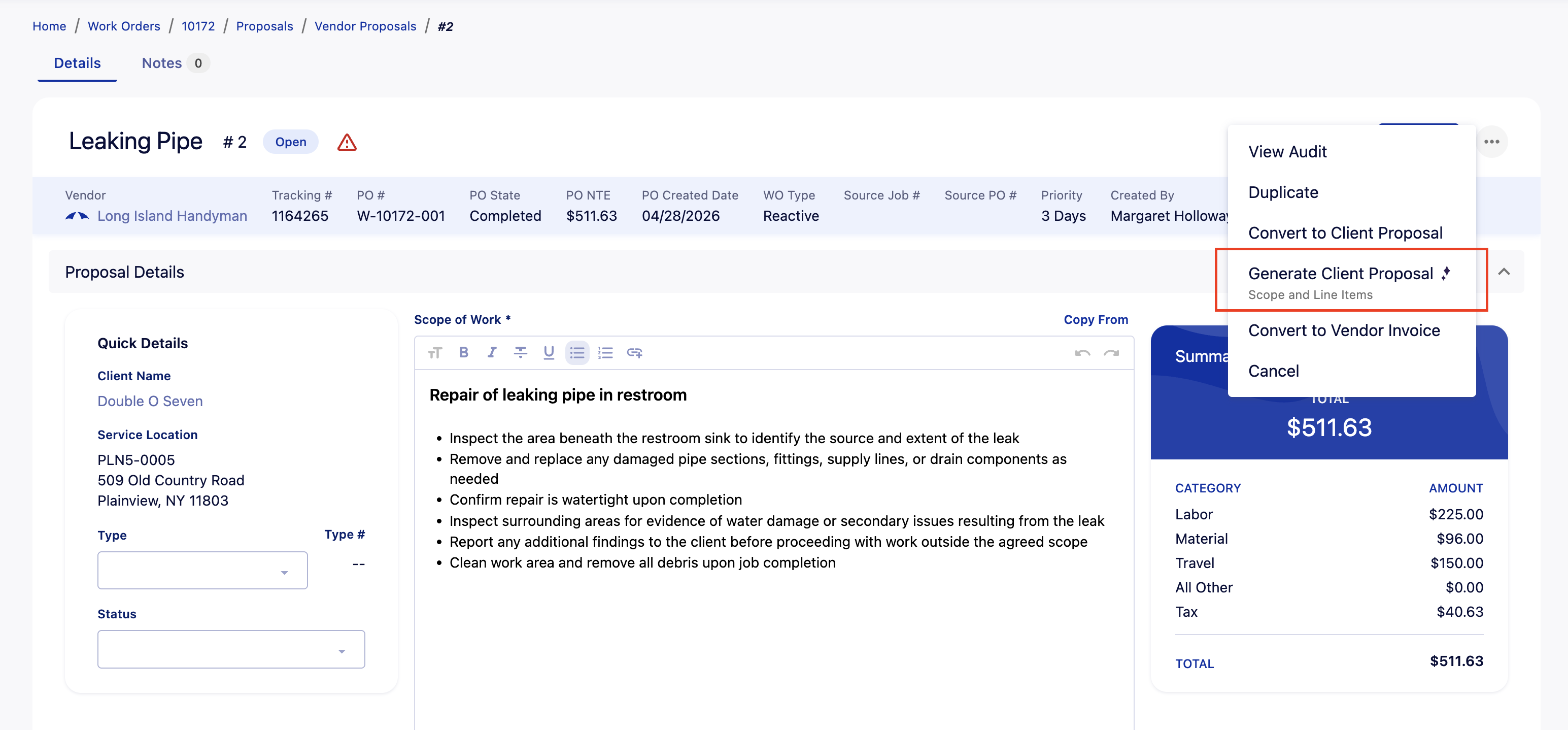
From the vendor proposal details page, click the three-dot menu in the top-right of the header.
You'll see Generate Client Proposal with a small sparkle icon next to it. Click it.
Step 2 - The "Generate Client Proposal" pop-up
A window opens with two parts:
"When writing scopes and line items, I consider:"
This list tells you what the AI is using to make decisions.
It looks at:
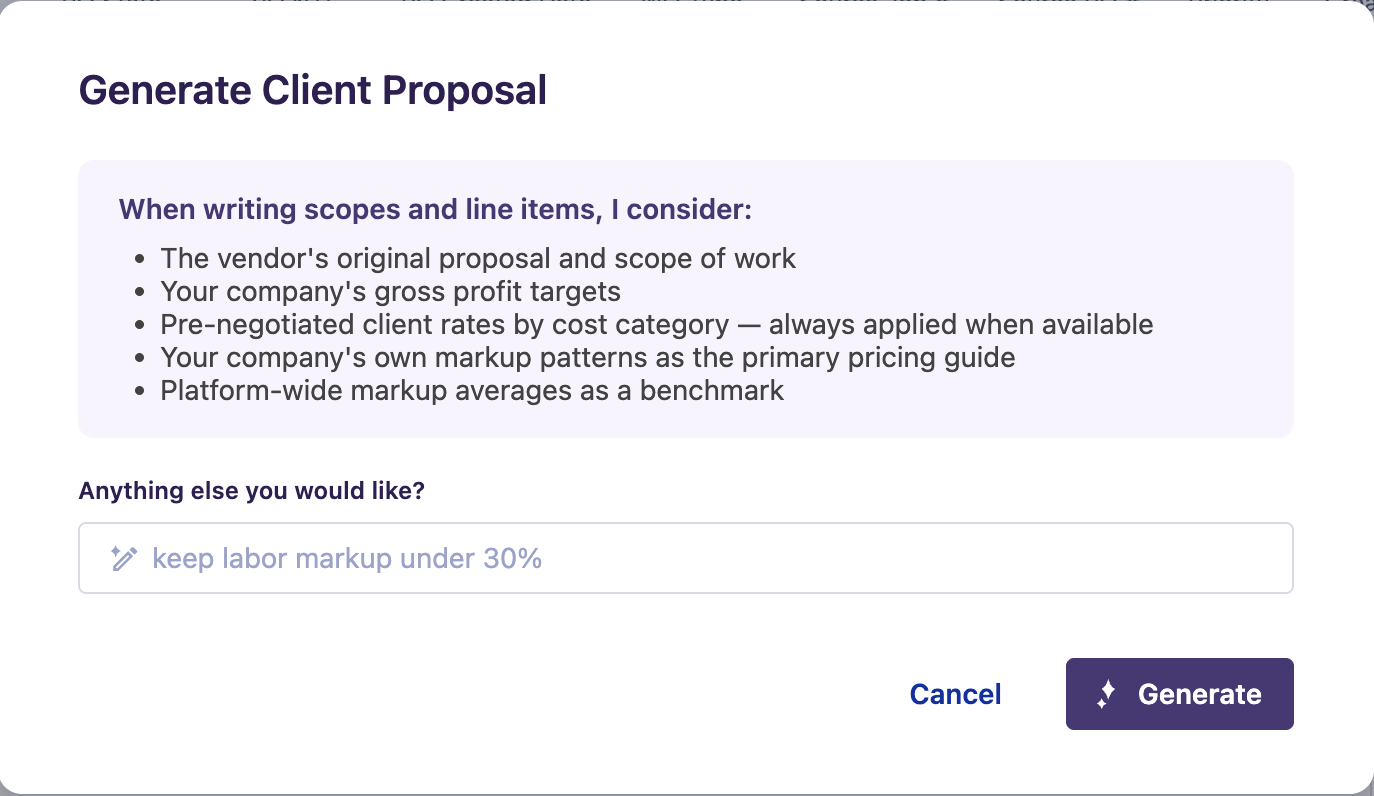
"Anything else you would like?" (optional)
A text box where you can give the AI extra direction in plain English. You don't need to fill this in. Use it when you want to nudge the result, like:
"keep labor markup under 30%"
"the client doesn't like long bullet lists - keep the scope short"
"add a one-year warranty line"
Buttons
Button | What it does |
Cancel | Closes the window. Nothing is generated. |
Generate | Sends the request and starts working. |
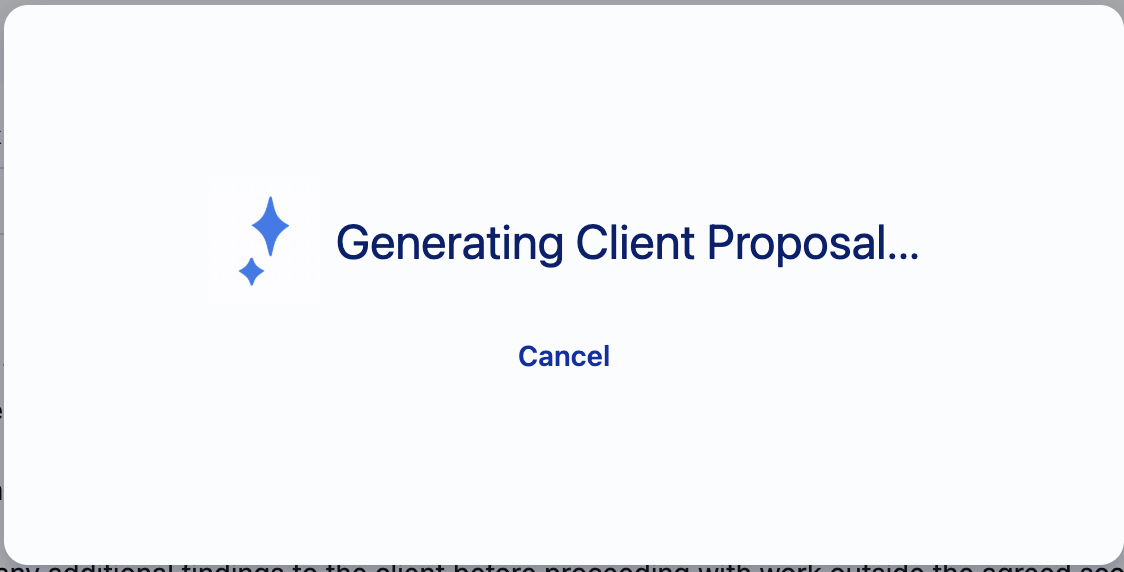
While it is running, you will see a "Generating Client Proposal..." message with a sparkle animation. If you want to back out, click Cancel in that loading window - the request stops and nothing is saved.
Step 3 - The Preview page
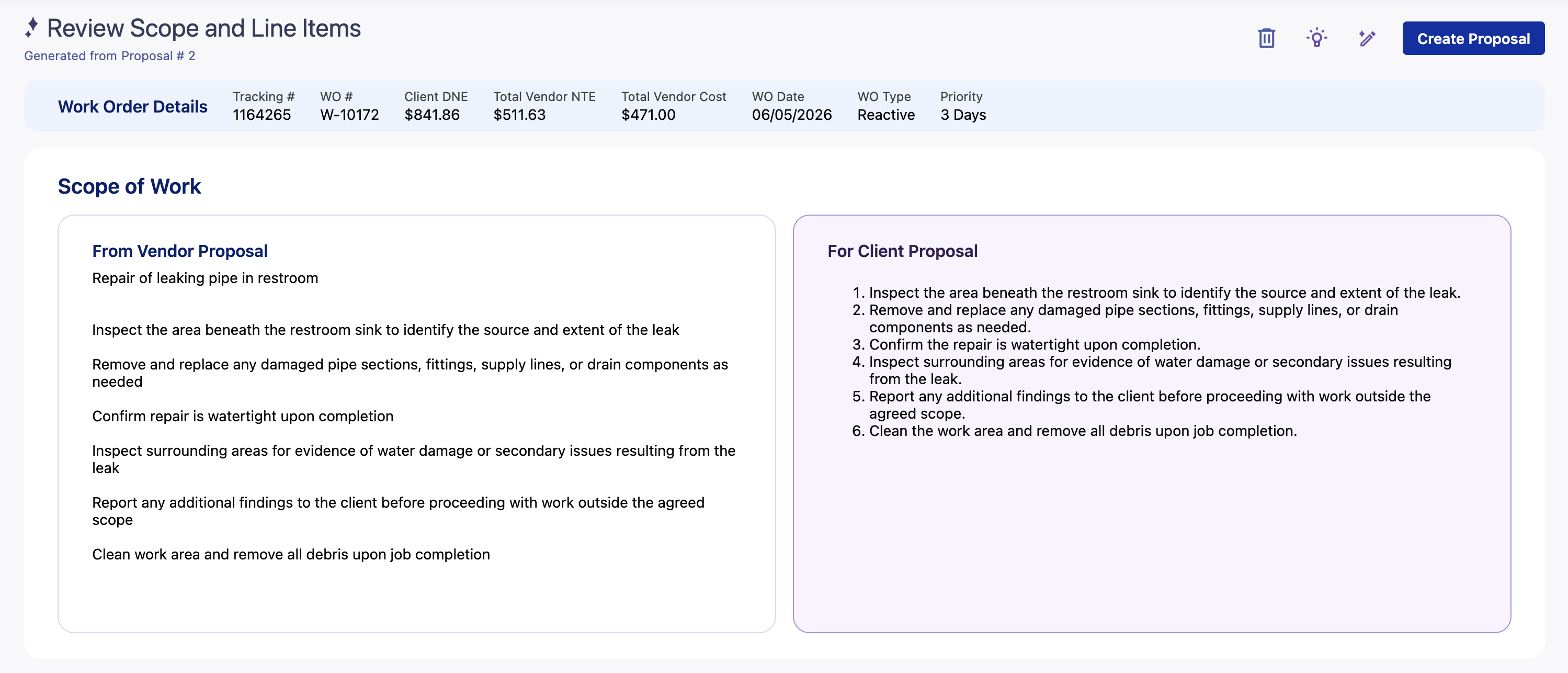
When it finishes, Umbrava takes you to a new page titled Review Scope and Line Items. Just under the title it says "Generated from Proposal #X" - you can click that link to jump back to the original vendor proposal.
Important: Nothing has been saved as a real proposal yet. The page is a preview. Closing the tab, walking away, or hitting Discard all throw it away.
What's on the page
Top bar - the work order details. Tracking #, WO #, client DNE, total vendor cost, dates, etc. This is just for context so you know what job you're looking at.
Scope of Work - two side-by-side panels:
- From Vendor Proposal (left) - what the vendor wrote, exactly as they sent it.
- For Client Proposal (right) - the AI's rewritten, client-friendly version. This is what will go on the proposal you send.
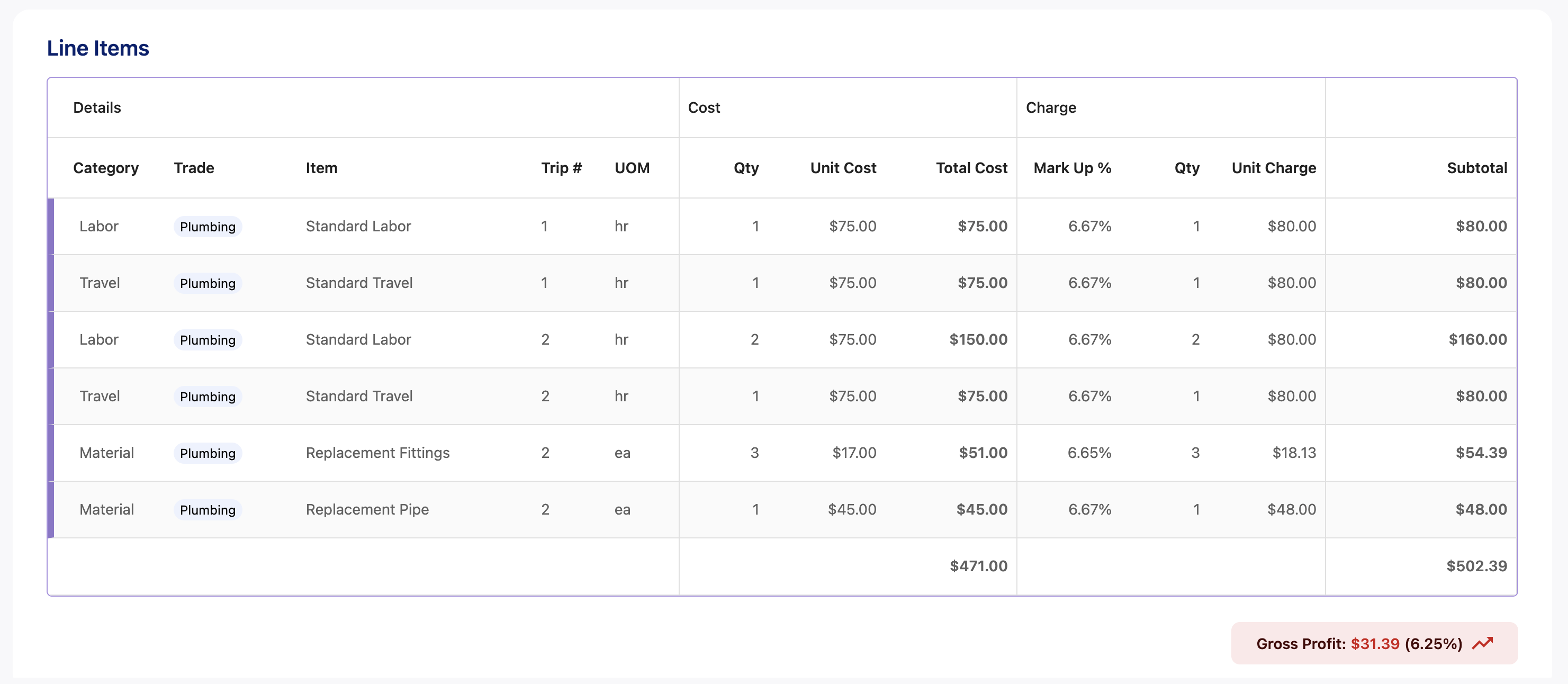
Line Items - a table showing every line. Reading left to right:
- Details: Category, Trade, Item, Trip #, UOM
- Cost: Qty, Unit Cost, Total Cost - what you're paying the vendor
- Charge: Mark Up %, Qty, Unit Charge - what you'll bill the client
- Subtotal - line total being charged to the client
Gross Profit pill - bottom-right of the table. Shows the dollar amount and percentage you'll make on the job. The pill color changes based on your company's gross-profit thresholds (so you can tell at a glance whether you're hitting target).
The buttons in the top-right of the page
These are the four things you can do with the preview:
Discard (trash icon)
Throws the preview away and takes you back where you came from.
When you discard, a small card pops up asking "Why didn't generated proposal work for you?" with options like "Wrong/incomplete scope," "Wrong/incomplete line item," "I hit the button by accident," and "Other," plus a free-text box. This is optional but really helpful - your answers tell us what to improve. You can close it without filling anything in.
Reasoning (lightbulb icon)
Opens a window that explains why the AI priced things the way it did. Useful when a markup looks high or low and you want to understand where the number came from. From this window you can click Go to Revise to make changes, or Close to dismiss it.
Refine with a prompt (edit-with-sparkle icon)
Opens a window labeled Revise Scope and Line Items. Type what you would like changed - for example, "lower the markup on labor line items to 25%" or "combine the two travel charges into one line" - and click Revise. The page will regenerate with your feedback applied. You can refine as many times as you want.
If you change your mind mid-revision, click Cancel in the loading window.
Create Proposal (the blue button)
This is the one that actually creates the client proposal. Click it when you're happy with everything. Umbrava saves the proposal and takes you straight to its details page, where it behaves like any client proposal you'd build by hand - you can edit, submit, send, etc. from there.
Tips
- Pre-negotiated rates always win. If you've got a rate card on file for this client/trade, those numbers will be used and the AI's markup suggestion is ignored on those lines. You don't have to do anything special to make this happen.
- The result isn't final until you click Create Proposal. Refine as many times as you want.
- Watch the Gross Profit pill. If it is red or yellow, you are under target - use Refine to push markups up.
- The AI doesn't see things outside the proposal. If there's context that matters (a difficult client, a one-off discount you promised in email), tell it in the prompt.
- Tell us when it is wrong. The little feedback card after Discard is the fastest way to make the feature better.
Was this article helpful?
That’s Great!
Thank you for your feedback
Sorry! We couldn't be helpful
Thank you for your feedback
Feedback sent
We appreciate your effort and will try to fix the article