Table of Contents
|
What is Inventory and why is it useful?
The Inventory module allows you to track and manage the parts, supplies, and materials used in your maintenance operations. Stock levels, part locations, and usage history are all managed in one place and tied directly to your work orders.
This module helps control costs with your ordered materials, and improves your ability to track every part of your inventory as they are used or reserved for each work order.
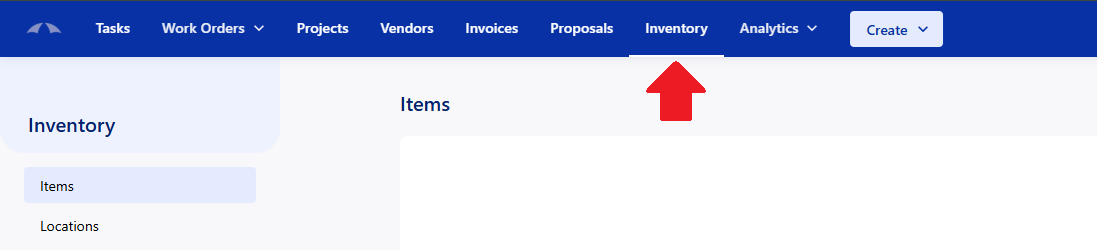
You can access the inventory module by clicking on 'Inventory' in the top nav bar of the website.
Adding Items to Inventory
Items can be added to your inventory from when you first enter the Item Catalog screen and clicking '+ Add' button. Enter in all of the required information, and click create. Now that item will be available in the Storage Areas/Locations that you have set up.
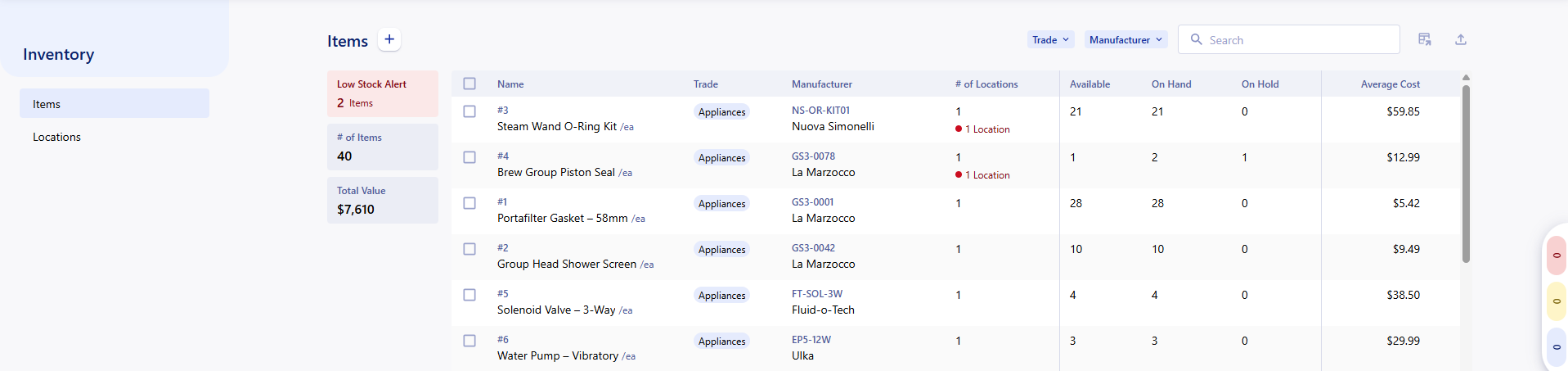
We will get into the Low Stock Alerts and item quantity thresholds in the next section.
Location Inventory
If your company has locations, you can edit your locations details to add inventory. This allows you to pull items into that locations inventory to track specifically what you have there.
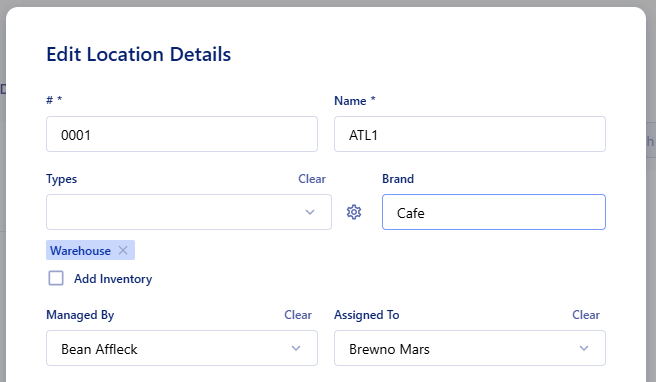
There is also a Managed By field that can be assigned to a user in the location details. This user will be able to manage the inventory for that location. You will only be able to see locations inventory that you have been set in the 'Managed By' fiend for.
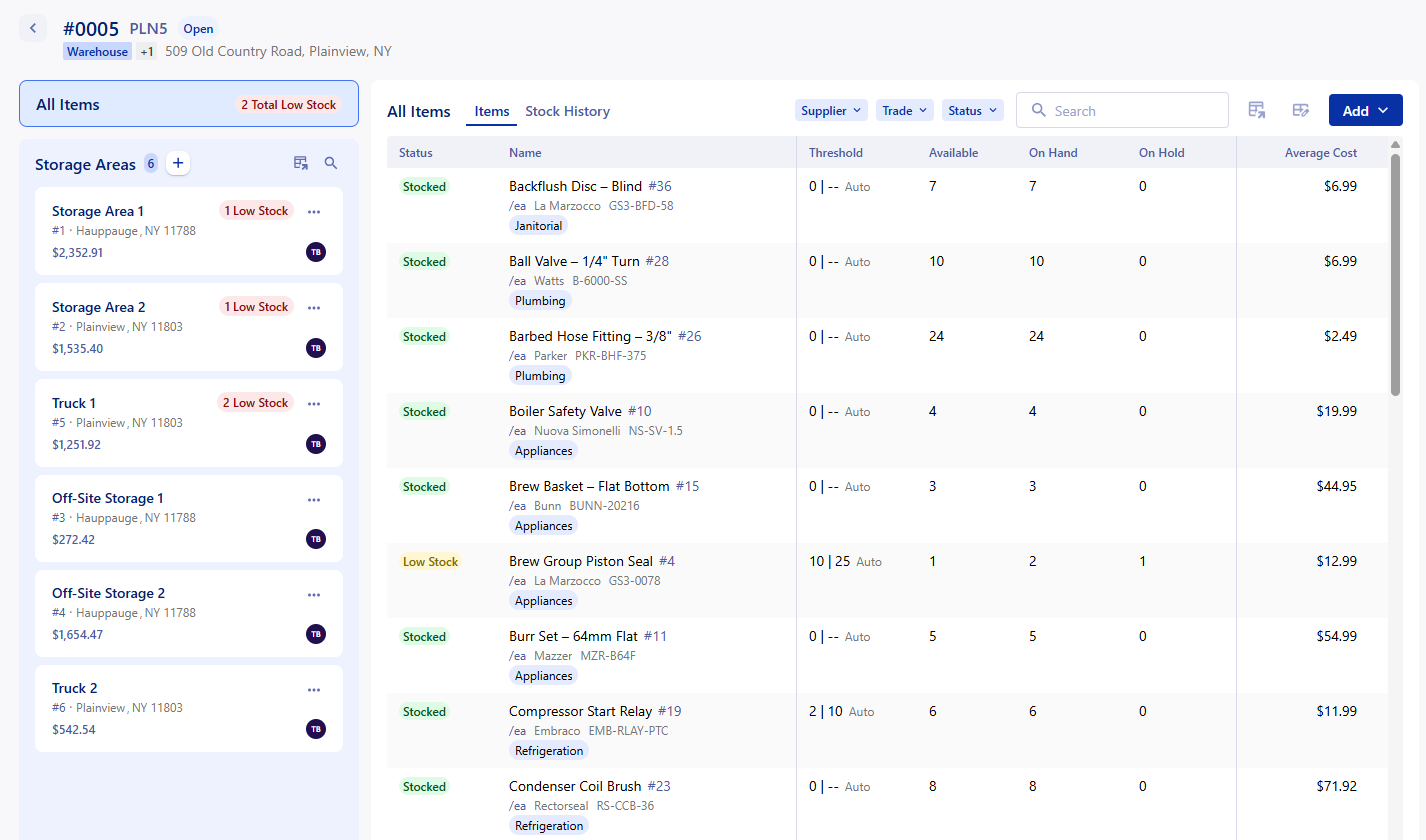
The items within a location will display with their amount available, on hand, and on hold. The threshold of the item is what is used to designate if you are Low Stock /Overstocked. The costs of the item are averaged with the amount that you have and the cost at time of input.
This item list can be filtered by your supplier, trade, or status of the items. You can also view a history of the stock of items that you have had over time at the location. You can swap to that view by clicking Stock History at the top of the item list.
Storage Areas
The Storage Areas are specific areas within the location where you allocate the inventory items. In this section, you can set item thresholds to warn you when you are low on stock, or if you are overstocked. You can create a storage area for any physical location. You just have to click on the 'Create Storage Area' button in the top right of the locations tab of inventory.
The storage area can have multiple people assigned to it in order to grant them access to the specific storage area.
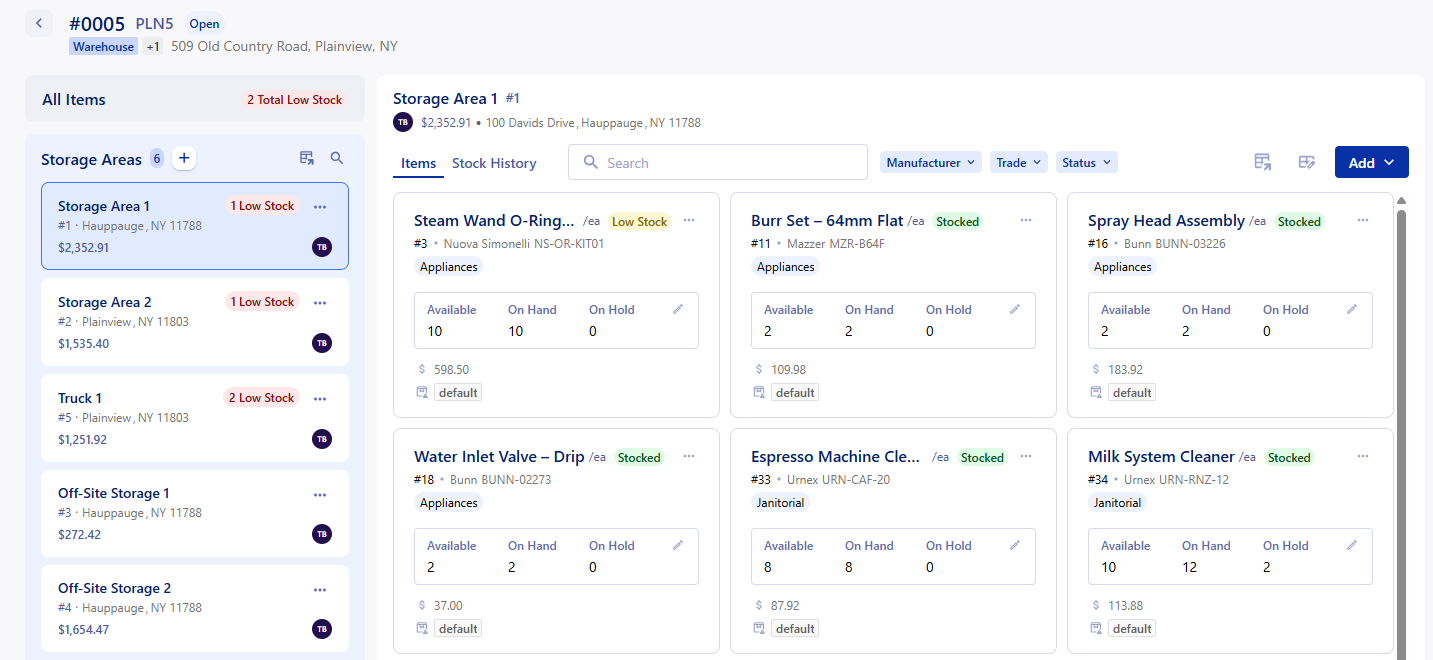
The items in each storage area can be edited to change the thresholds, recount what is available, see the details on the item and much more. You can access these options by clicking on the 3 dot menu in the top right corner of each item in the storage area.
You can filter the item display by Manufacturer, Trade, and Status at the top of the item list next to the search bar.
Using your Inventory
Items that are stored in your inventory can be used in work orders to automatically generate the material line item in a proposal/invoice, or to track the usage and spend on that particular work order. The inventory materials can be added in the new 'Items' tab in the work order.
 | 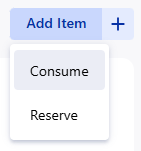 |
Consume
Consuming an item uses the item in the moment, and subtracts from the Available stock. This will put the item costs into the work order to easily track.
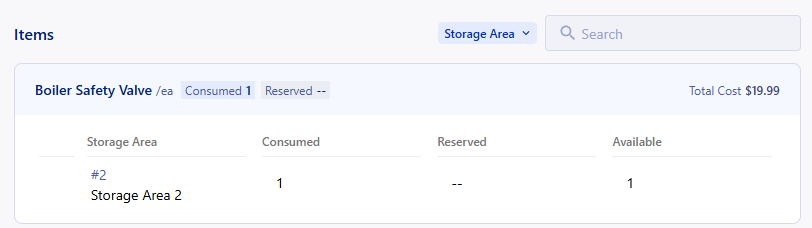
You can edit/remove items that have been used in the work order. Using the item and modifying the consumed items on the work order will update the stock information of the item across the app.
Reserve
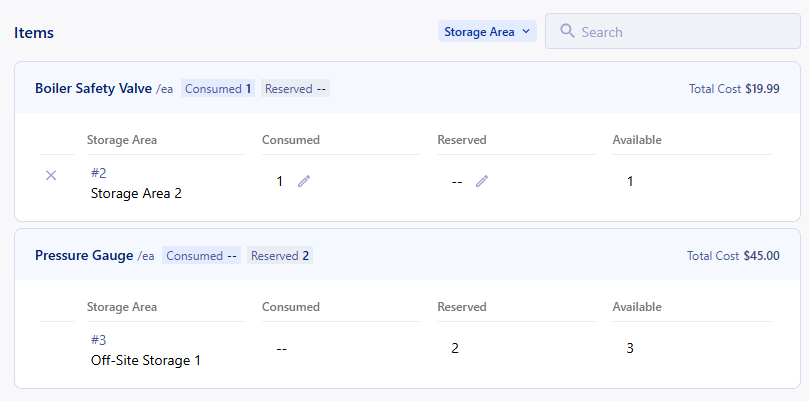
Reserving an item is a good way to set aside the item to make sure you are not using the same item on multiple work orders when you know that you'll need this item for your work.
The reserved items will show in the reserved column of the item across the app so that you cannot use the same stock multiple times and can track when you are low on material.
Permissions
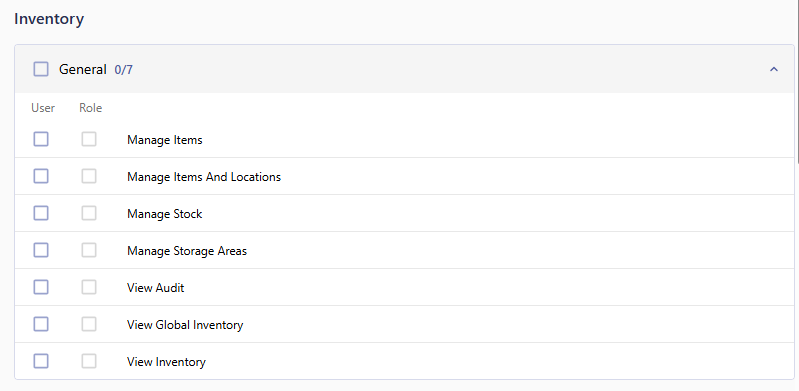
Inventory has its own permission set for Users and Roles. Users with the permission will be able to use/manage inventory based on the permissions below.
Was this article helpful?
That’s Great!
Thank you for your feedback
Sorry! We couldn't be helpful
Thank you for your feedback
Feedback sent
We appreciate your effort and will try to fix the article