Features:
On the Way (US-9016): In October we released a new Work Order status for 'On the Way'. Today we are releasing the new way to make a distinction between time spent on-site, and the time spent traveling to site. You will now be able to mark your trip as 'On the Way'. Your vendors will also be able to mark their Work Orders as 'On the Way' which will let you know that your Work Order is about to be in progress.
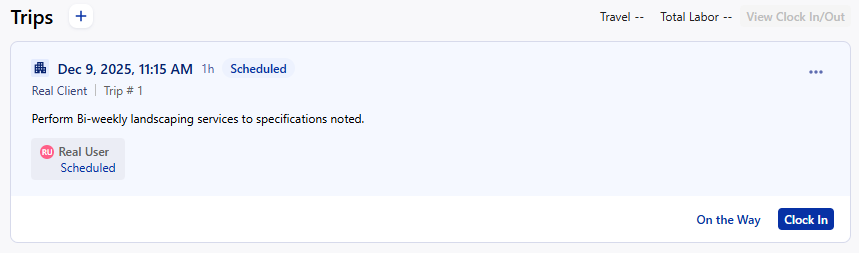
When you click on the 'On the Way' option in the trip, you select which technicians (or the # of technicians) that are on the way to the Work Order location. Once started, your Work Order will automatically update to be in the 'On the Way' status.
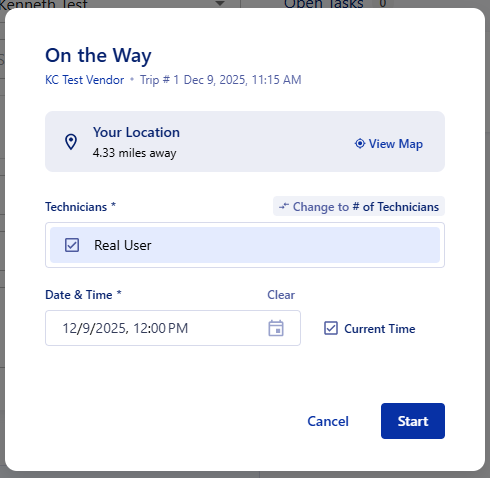
Once a technician is 'On the Way' they cannot be removed from the trip that they are on the way to. A technician can only be marked 'On the Way' or 'Clocked In' to one Trip at a time.
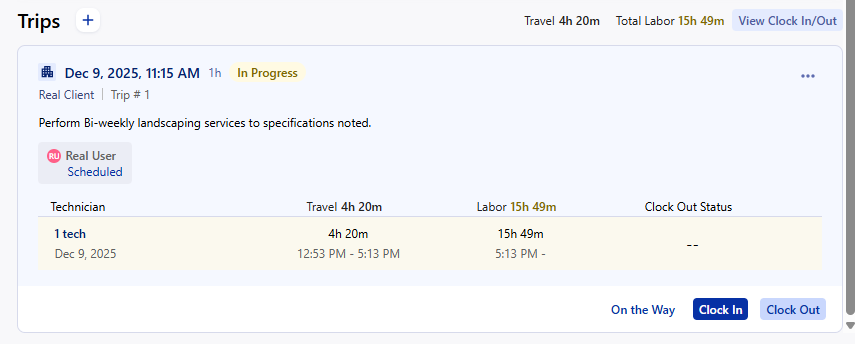
The trip in the Work Order will show the travel time based on how long the technician is 'On the Way' for. Once on the way, the next step for the technician is to Clock In to the trip.
The Trip actions that used to be on the card (Complete, History, etc.) can now be done via the context menu in the top right corner of the trip. To edit/reschedule, you can click on the trip itself to open up the edit/reschedule screen.
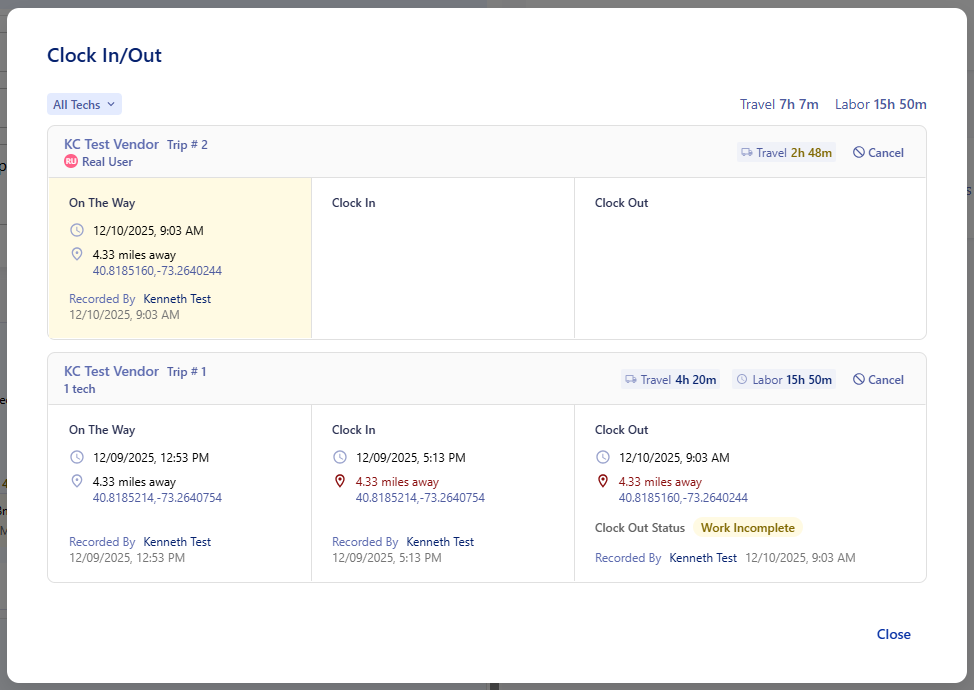
Clicking on the View Clock In/Out button in the trips tab will show the On the Way and Clock In/Out information now for all trips within the Work Order.
These changes are all locked behind the already existing Clock In/Out permissions.
Mobile On the Way: The mobile app has also received an update to make it easy for you and your technicians to update your work orders while on the move.
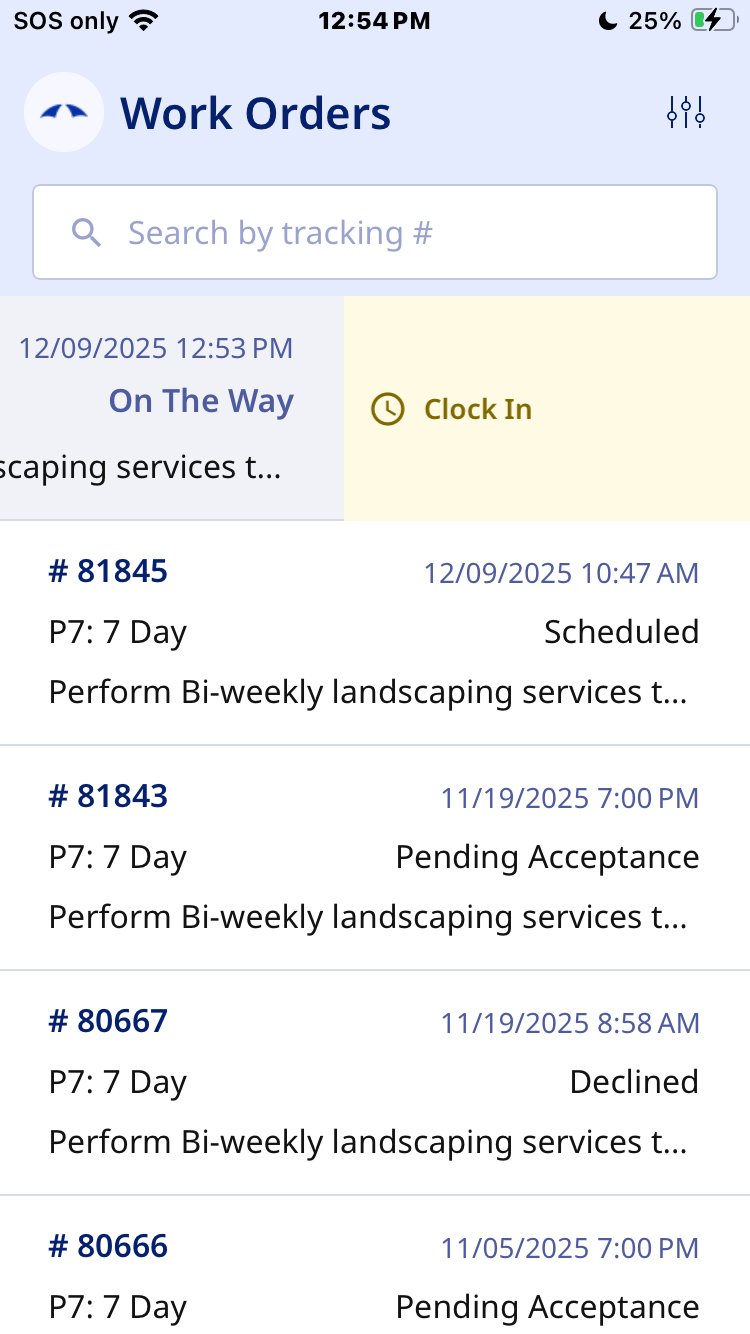
As long as you aren't already On the Way or Clocked in to a Work Order, you can swipe a Work Order to the left to trigger the Work Order as On the Way.
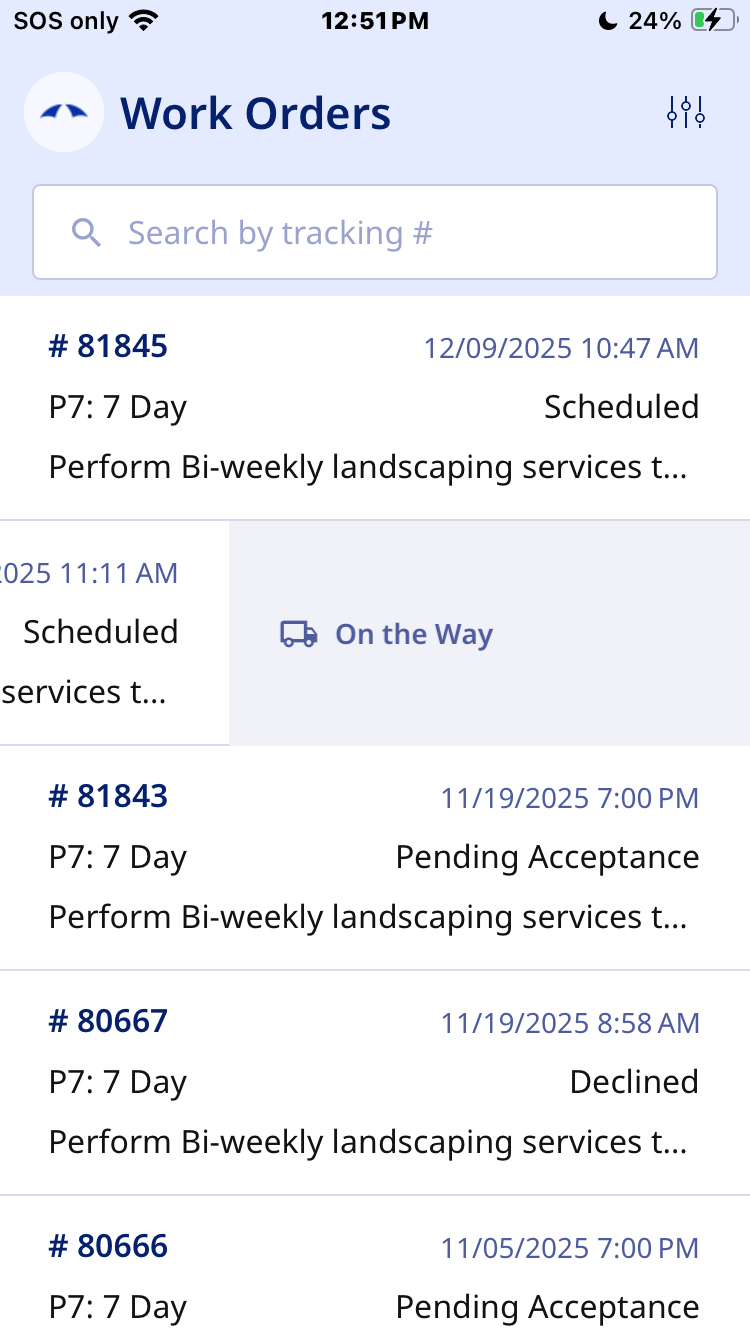 | 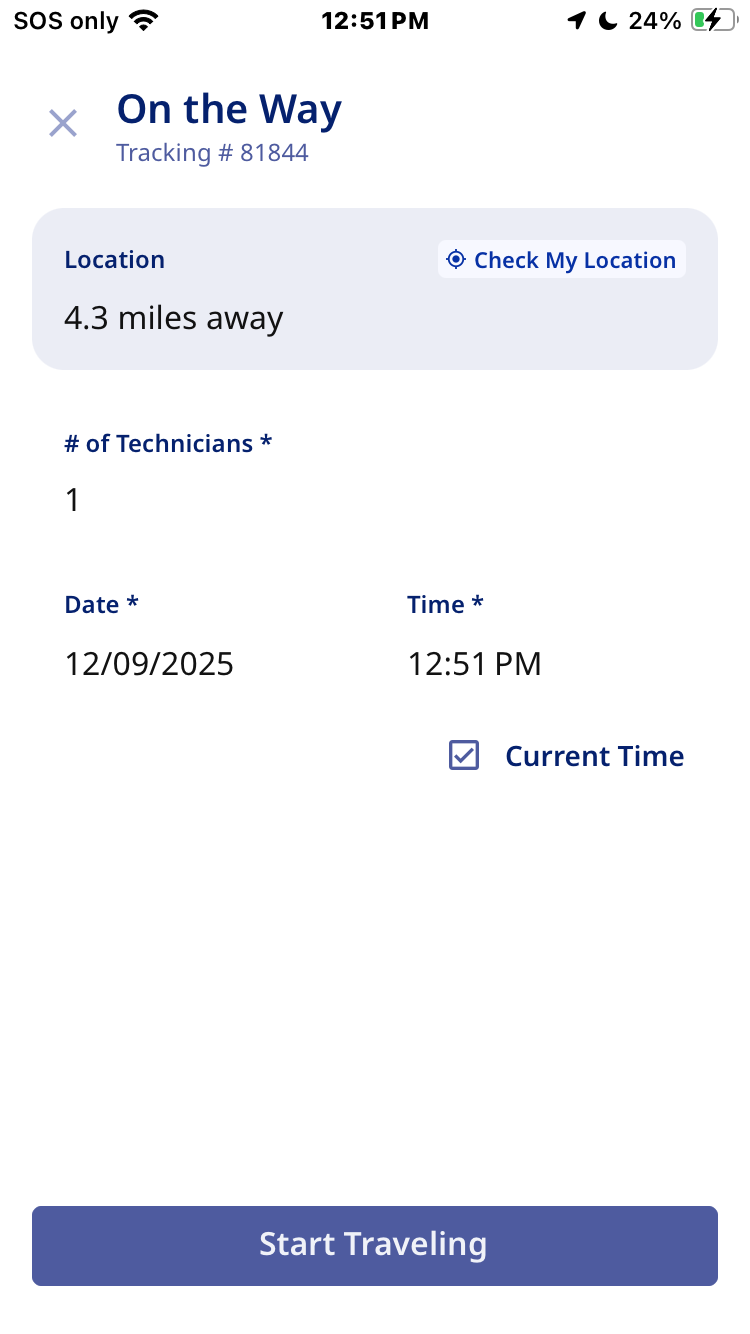 |
Once a Work Order is On the Way, it will be pinned to the top of the Work Order list. This starts the timer and will give you a notification that you have a Work Order 'On the Way' that will persist on your lock screen.
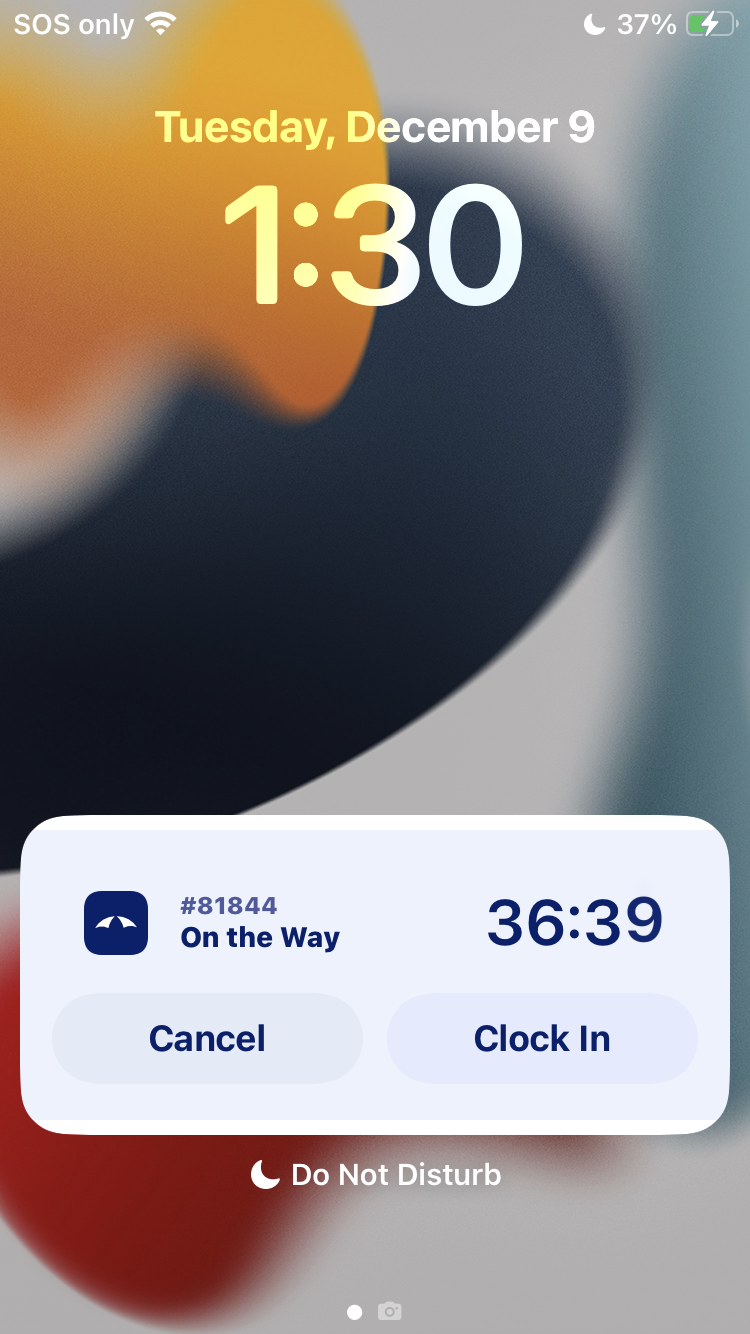
You can clock into the Work Order by tapping Clock In on notification timer, or by swiping left on the Work Order in the Work Order list on the mobile app. Both options will open up the already existing screen.
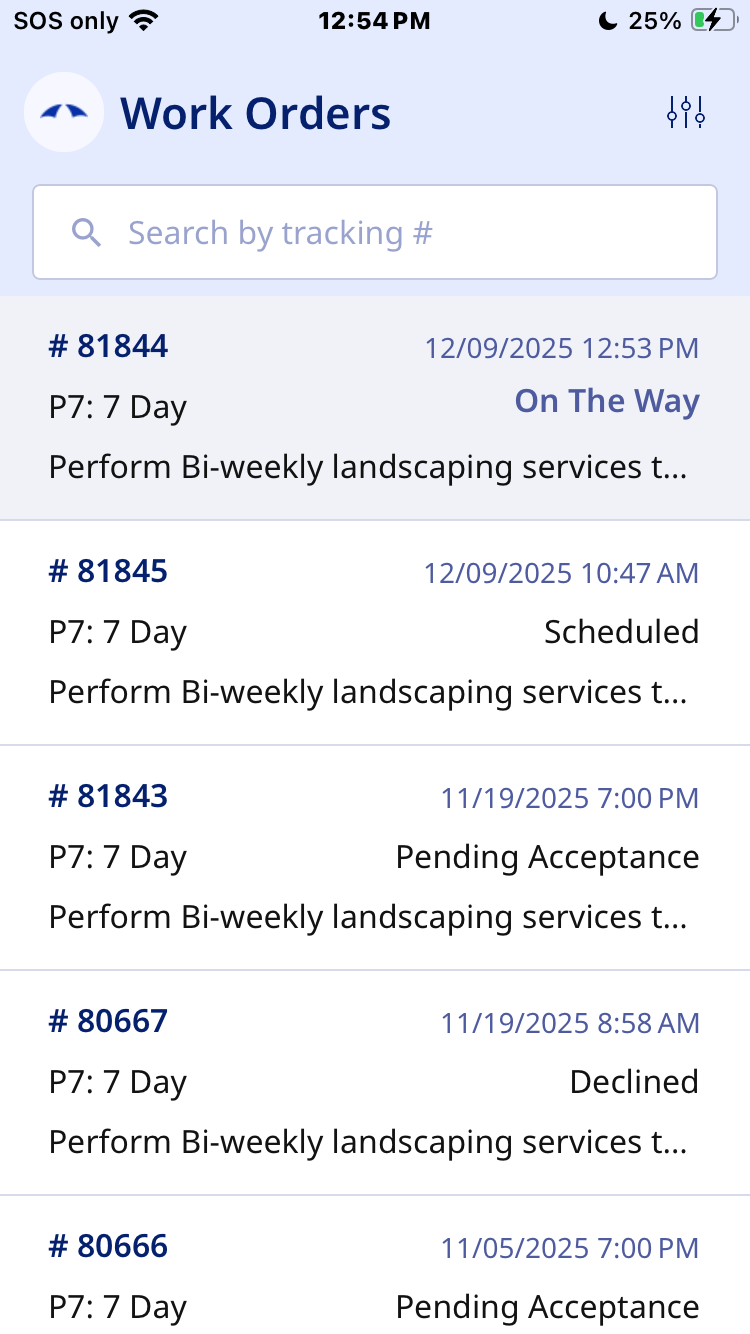 |  |
You can skip the On the Way process in the app by tapping on the context menu in the top right of the Work Order details page. This will allow you to take the following actions:
- Cancel On the Way
- Cancel Clock In
- Clock In (without setting On the Way)
- Complete (completes the Work Order)
Was this article helpful?
That’s Great!
Thank you for your feedback
Sorry! We couldn't be helpful
Thank you for your feedback
Feedback sent
We appreciate your effort and will try to fix the article