Table of Contents |
On the Way
You can mark yourself as 'On the Way' to update a work order and change the status to 'On the Way'. This tracks how long you spend traveling to the work order location. Only one work order can be marked 'On the Way' at a time per technician that you have set in the app.
To set your 'On the Way' status:
- Swipe left on the work order from the Work Order list. (Vendors only)
- Tap the 'On the Way' button within the Work Order. (Technicians)
- Tap the 3 dot context menu at the top of the Work Order.
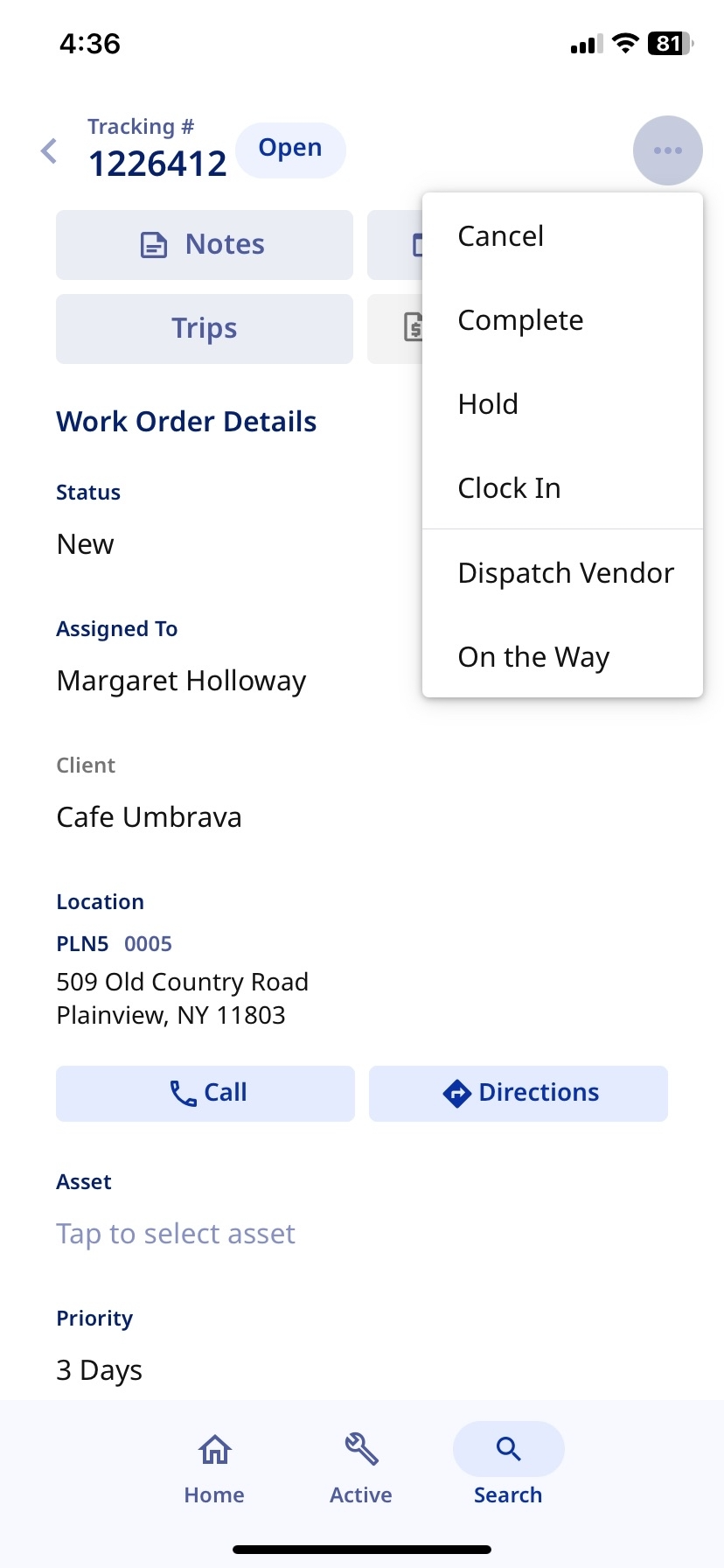 | 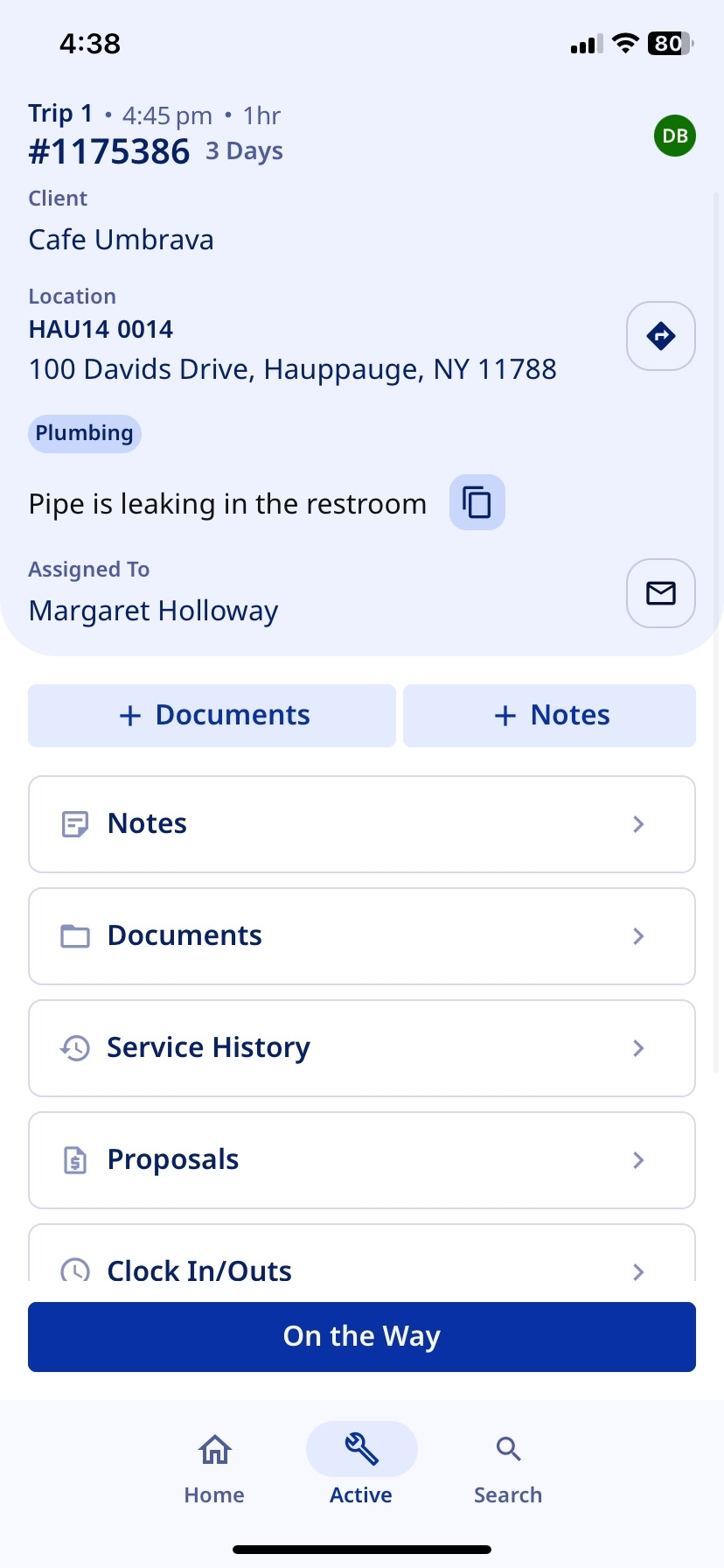 |
Clocking In
From 'On the Way', you can update the status by clocking into the work order. You can clock into a Work Order From the 3 dot menu at the top of a Work Order that is not already clocked in or by swiping left on the Work Order List.
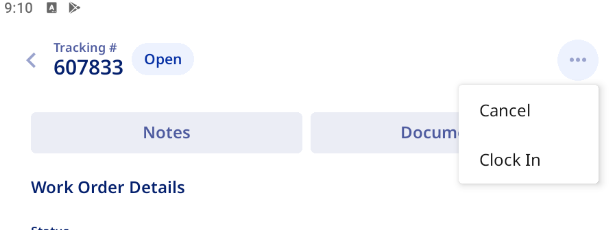 | 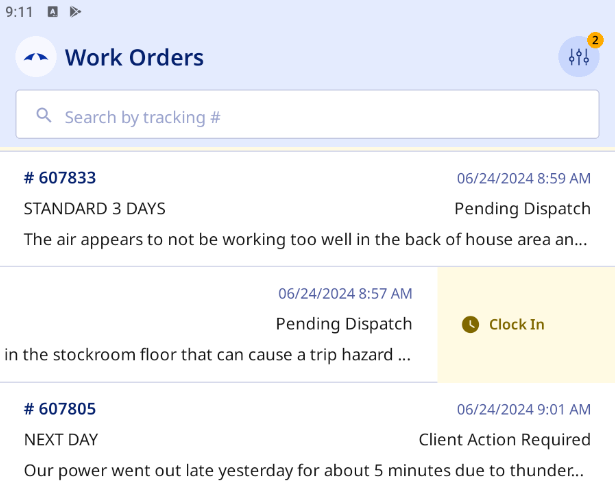 |
You will need to allow access to the device's location settings to be able to clock in on the mobile app.

Clocking in on a Work Order will pin the Work Order to the top of the list, this makes it easy to find once you finish your work.
Clocking Out
Clocking out of a Work Order can be done using the same methods as clocking in. You can Clock Out from inside of a clocked in Work Order, or by swiping left on the Work Order on the Work Order List.

Fill in the information on the Clock Out page, and depending on your Clock Out reason, the Work Order will update!
| Work Complete | Completes the work order. |
| Work Incomplete | Completes the trip and updates the work order status to Clocked Out: Incomplete. |
| Need Proposal | Updates the Work Order to 'Vendor Proposal Required'. Work order stays open. |
| Need Material | Updates the Work Order to 'Need Material'. Work order stays open. |
| Break | Trip stays open, work order updates to 'Clocked Out: Incomplete. Clock back into the trip to continue. |
Was this article helpful?
That’s Great!
Thank you for your feedback
Sorry! We couldn't be helpful
Thank you for your feedback
Feedback sent
We appreciate your effort and will try to fix the article