Creating Invoices Easier (US-8316): We've significantly improved the invoice creation process to make it easier, more flexible, and more intuitive. These updates apply to both standard invoices and vendor invoices, bringing forward important information and streamlining your workflow.
What's Changed
Before: Invoice creation required completing all fields at once, with limited ability to save progress or handle rejections efficiently.
After:
- New Draft state allows you to save and return to invoices in progress
- Clearer indication of which fields are editable
- Improved handling of rejected invoices with Duplicate functionality
- Enhanced vendor invoice creation with better PO selection
- Invoice tracking numbers now displayed on Work Summary dashboard
Creating Invoice Drafts
When you click the "Create Invoice" button in a Work Order, you'll now be taken to a new tab with an invoice in Draft state. This new state allows you to:
- Start an invoice without completing all fields immediately
- Gather additional information before finalizing
- Review client invoice instructions before submission
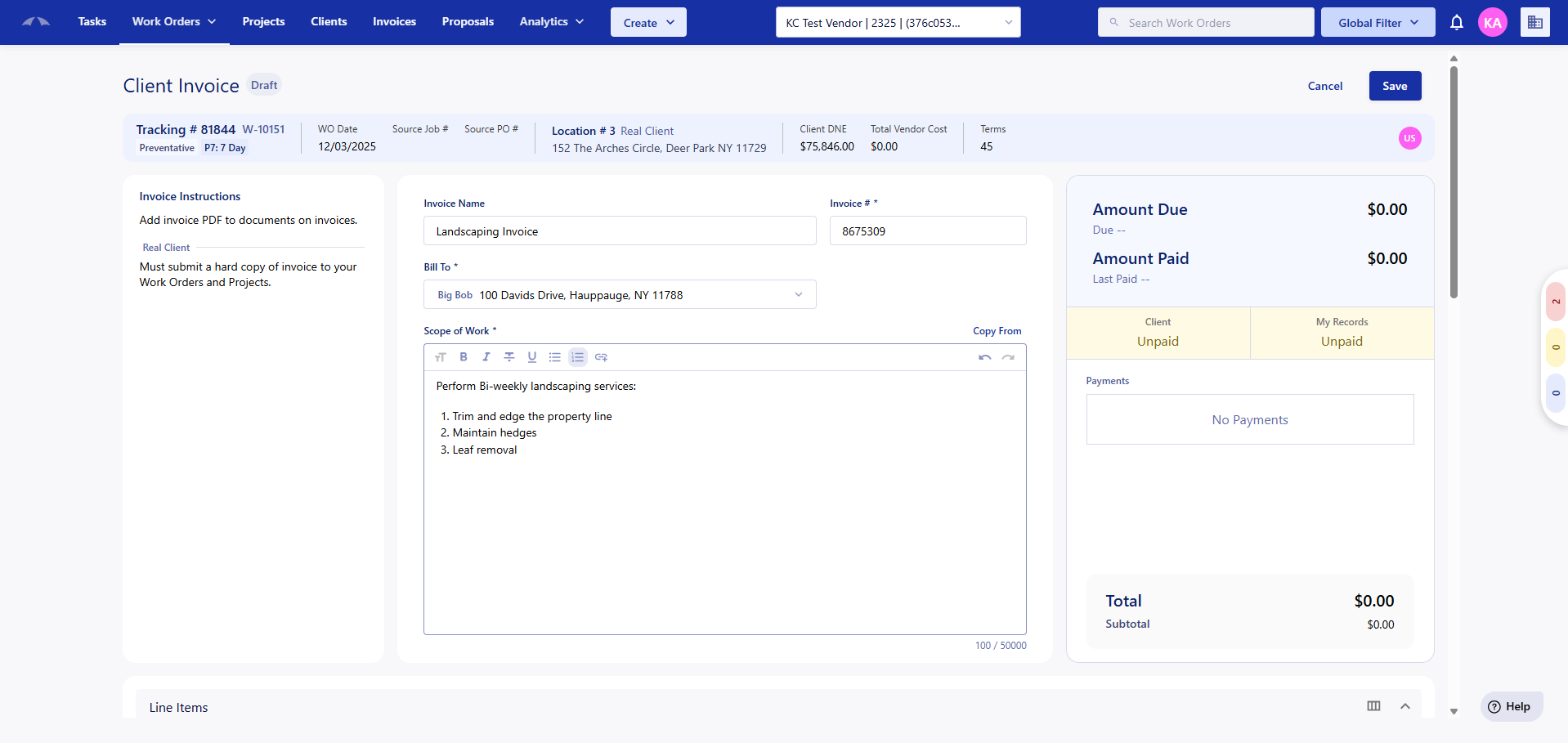
While in Draft state, you can edit:
- Invoice Name
- Invoice Number (#)
- Bill To contact
- Scope of Work
- Line items
- Upload documents
Any documents uploaded to a Draft invoice will be automatically added to the associated Work Order/Project once you save the Draft.
Invoice Instructions Now Visible
Client invoice instructions are now displayed prominently during invoice creation, so you can ensure compliance with client requirements without switching screens.
Improved Layout
The information at the top of the invoice has been reorganized for better readability and easier access to key details.
Duplicate Invoice Feature
The previous "Clone" option has been replaced with "Duplicate" to better reflect the function and improve clarity. The functionality is similar but with enhanced features.
How to Duplicate an Invoice
For Rejected Invoices:
- Open the rejected invoice
- Click the "Duplicate" button in the top right corner
- You'll be taken directly to the new duplicated invoice in Open state
For Any Other Invoice:
- Open the invoice or find it in your invoice list
- Click the context menu (three dots)
- Select "Duplicate"
- You'll be taken to the new duplicated invoice

What Happens When You Duplicate
Copied Information:
- All line items and amounts
- Scope of Work
- Bill To contact
- Attached documents
- Invoice settings and preferences
- Invoice status (set to Open)
- Submission date is not set
- Approval/rejection information is removed
Invoice Numbering: The duplicated invoice receives a new number with a "-1" suffix to indicate it's a duplicate.
Examples:
- Original: INV-12345 → First duplicate: INV-12345-1
- Original: INV-12345 → Second duplicate: INV-12345-2
- Original: INV-12345 → Third duplicate: INV-12345-3

The duplicated invoice includes a link back to the original invoice at the top, under the invoice name, making it easy to reference the rejection reason or compare versions.
Creating a Vendor Invoice: Vendor invoices have received the same Draft state and improved layout as standard invoices, plus additional improvements to the Purchase Order selection process.
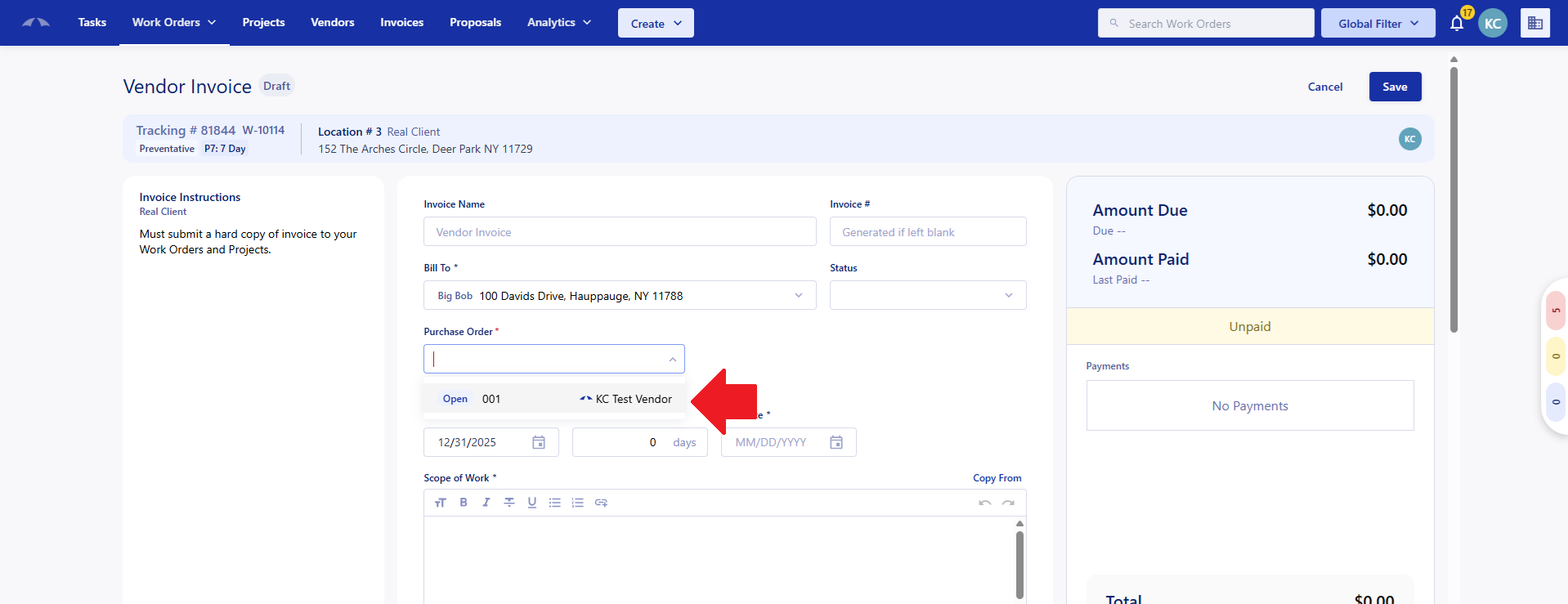
The selector has been updated to more clearly show the phase and PO # of the purchase orders that you can select from when creating the invoice.
Was this article helpful?
That’s Great!
Thank you for your feedback
Sorry! We couldn't be helpful
Thank you for your feedback
Feedback sent
We appreciate your effort and will try to fix the article