Table of Contents
|
The Active Work Orders dashboard is a centralized place to manage your Work Orders. The data updates live every time the dashboard is loaded to always provide the latest information.
This report is available to Clients on the system.
You can find this report by clicking on the Analytics dropdown at the top of the app, and selecting Active Work Orders inside the 'Operations' folder. This requires the Analytics → 'View Work Orders Analytics' permission.
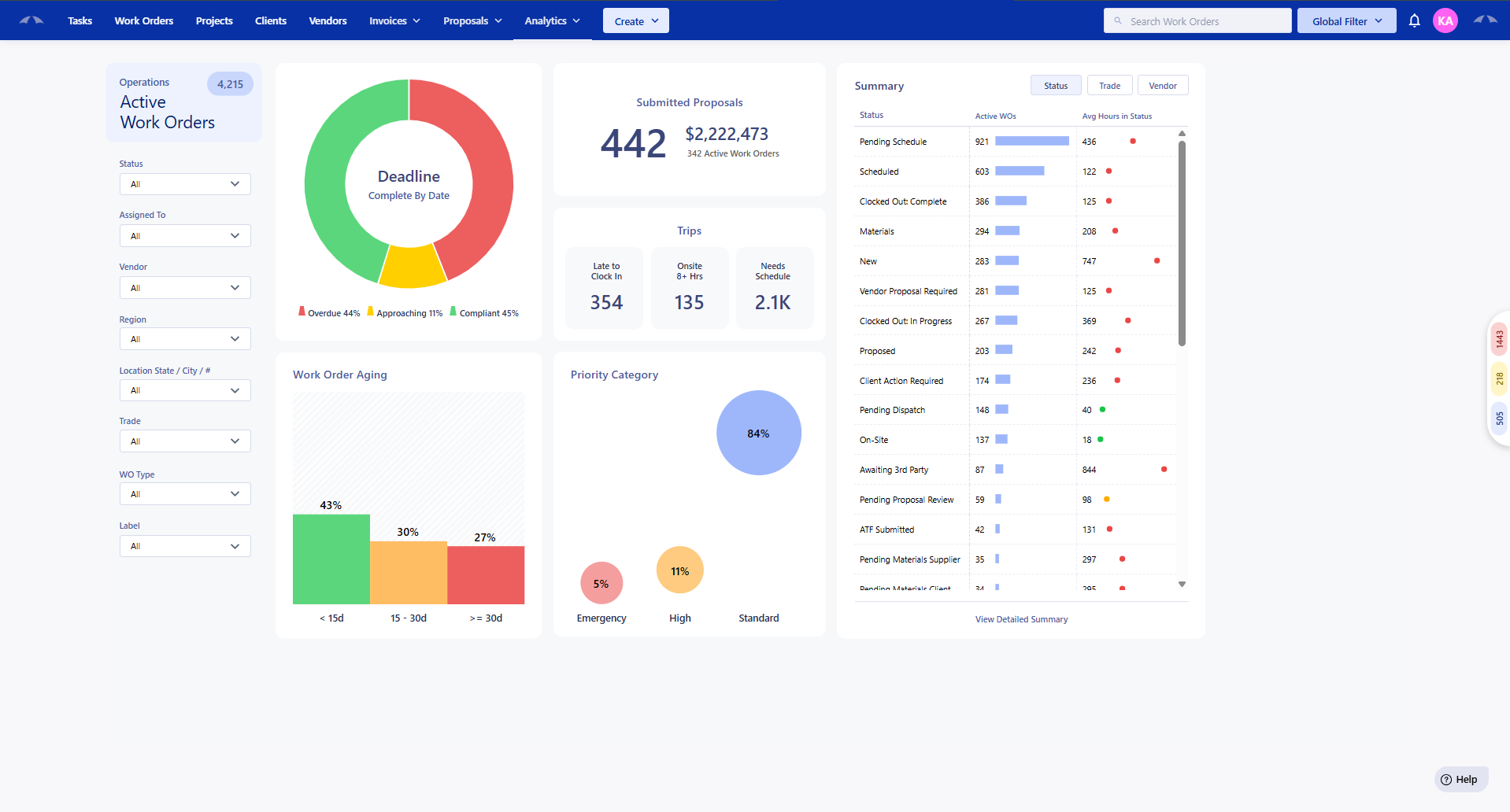
Note: Includes Work Orders & Purchase Orders in the following phases: Open, Pending Acceptance, Confirm Complete, On Hold, Confirm Cancel, and Confirm Reopen.
Dashboard First Look:
Opening the dashboard will show you the Work Orders for your company broken down into 5 categories with a summary to help visualize where your work stands.
The filter on the left lets you view the information based on the following:
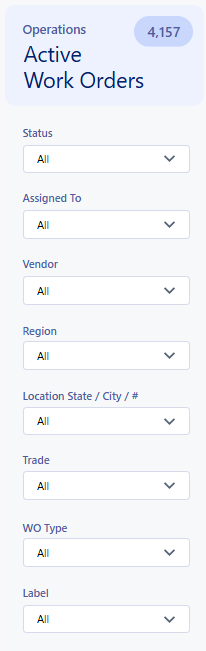 | At the top of the filter, you will see a count of all of the Work Orders that are currently being accounted for based on the filters selected. This count will represent the amount of Work Orders for all of the tiles in the dashboard. Starting off, the dashboard will display all by default. Status - Search and select any Work/Purchase Order status that populates the report. Assigned To - Allows you to filter the Work Orders down to the user that the Work is assigned to. Vendor - Allows you to filter the vendors that are assigned to the Purchase Orders. Region - If you have regions set up, this will filter all work performed for locations that are in the selected region(s). Location State / City / # - Filter the work by the Location that the Work Order is set for. Trade - Select any trade to show work within the trade. You can filter by multiple trades at once. Work Order Type - You can check how your Preventative Maintenance work compares to the Reactive work that is being done. Label - Your labels that you set for a Work Order can be used to filter the work that is shown. Labels can be set for anything you see fit. |
Deadline: Complete By Date
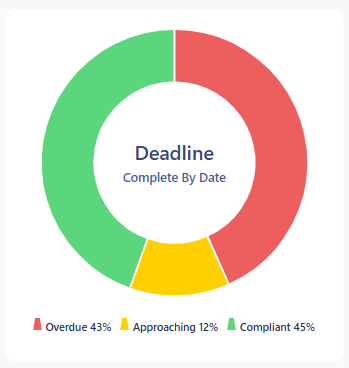 | This chart groups the Work Orders by the amount of days between now and Work Order Complete By date. The Complete By date comes from the Priority SLA and can be modified per Work Order. Overdue is any Work Order that is past the Complete By date. Approaching is any Work Order where the Complete By date is 2 or less days away, including today. Compliant is any Work Order where the Complete By date is more than 2 days away. |
Hovering over the different sections of the chart shows you a tooltip of the # of Work Orders in section, and the % that they make up of the Work Orders. Clicking into the chart will pull up a list of all of the Work Orders that make up the section. This list can be exported.
Submitted Proposals
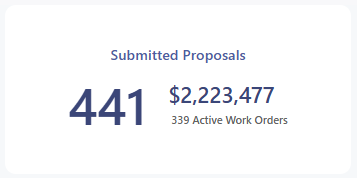 | This tile shows the total proposals that are have been submitted to your company that are pending review and the total amount that is proposed. |
Clicking on the tile will open up a list of all Work Orders with Proposals with the amount that is proposed. You can click into the Work Orders directly from the list or export the list to get all information out of the dashboard.
Trips
The trips tile has 3 drillable sections that break down where the trips on the Work Orders stand.
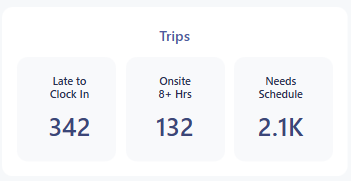 | Late to Clock In - Number of trips where Scheduled Date is before Now and there is no in progress clock in. Onsite 8+ Hrs - Number of clock in records that have been clocked in for 8 or more hours to a trip. Needs Schedule - Number of Purchase Orders or Work Orders if no Purchase Orders exist, that don’t have a scheduled trip. This excludes the following statuses: Materials, On Site, Vendor Proposal Required, Proposed, Confirm Complete, On Hold, Clocked Out: Complete, and Confirm Reopen. |
Clicking on each section will display the Work Orders/Purchase Orders that have the trip information. You are able to export this list and drill directly into the Work Order from the dashboard.
Work Order Aging
The Work Order Aging tile shows the trends in how old your Work Orders are from the point of creation.
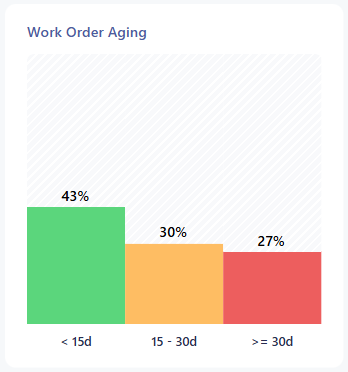 | The Green bar shows all work that is less than 15 days old.
|
Clicking into the bars will generate a list of all of the Work Orders that are in the bars data. You can drill into the Work Order from the list and you will be able to export each list as needed.
Priority Category
This tile groups all of your Work Orders by the Priority category. This allows you to track the volume of work that is an Emergency, High, or Standard priority.
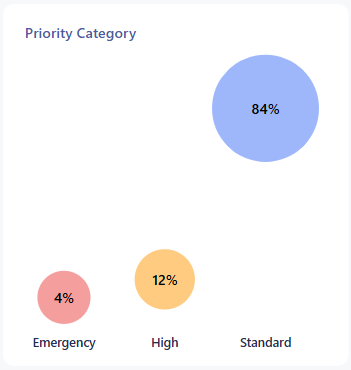
The Blue bubble is for Standard priority work.
The Yellow bubble is for all High priority work.
The Red bubble is for all Emergency priority work.
Clicking into a bubble will load the Work Order list that has all of the work of that priority. You can export and drill into the list as needed.
Summary
The Summary section is a quick breakdown of the information in your Work Orders. You can slice up the data into 3 different groupings to see how your Work Orders stand per the summary options: Status, Trade, Vendor.
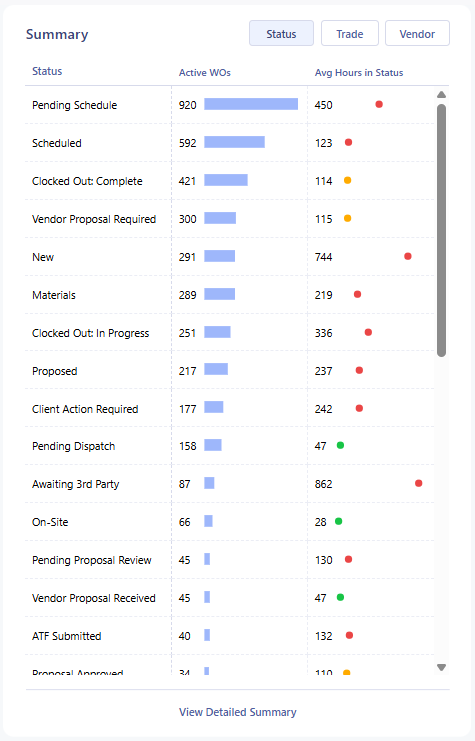 | The Status Summary page includes information about your Work Orders and the Statuses that they are in, along with the average amount of hours that your Work Orders stay in that status. The Trade Summary page breaks down all of your Work Orders by Trade. It also shows the average hours that the Work Orders remain in a status per trade. The Vendor Summary page breaks down your vendors and the amount of Active Purchase Orders they have assigned to them. The list displays in a descending order by quantity, so your most used vendors will be at the top of the list. At the bottom or each group, you can click on the View Detailed Summary option for a deeper dive into the information of the Work Orders in each grouping. For Statuses, you can break down each Status by Sub-status for a more detailed breakdown. Trades get broken into their subtrades. The Vendor detailed summary shows more details about the Purchase Orders that the Vendors have been assigned to. You can change the filters on the Summary page and the grouping as well. You can select from the following groups: Assigned To, Location, Location Region, Status, Trade, Vendor, WO Label, WO Type. |
Was this article helpful?
That’s Great!
Thank you for your feedback
Sorry! We couldn't be helpful
Thank you for your feedback
Feedback sent
We appreciate your effort and will try to fix the article