Table of Contents |
The Operations: Completed Work Order Trends dashboard allows you to track your tends on completed work order metrics. The dashboard pulls work orders that are in the following phases: Work Complete & Closed.
The main use of this report is to identify trends over set periods of time and track the quantity/value of work. The data updates once per day at 11:00 PM EST and does not update live.
This report is available to Clients and FMs that are on the system.
You can find this report by clicking on the Analytics dropdown at the top of the app, and selecting Completed Work Order Trends inside the 'Operations' folder. This requires the Analytics → 'View Work Orders Analytics' permission.
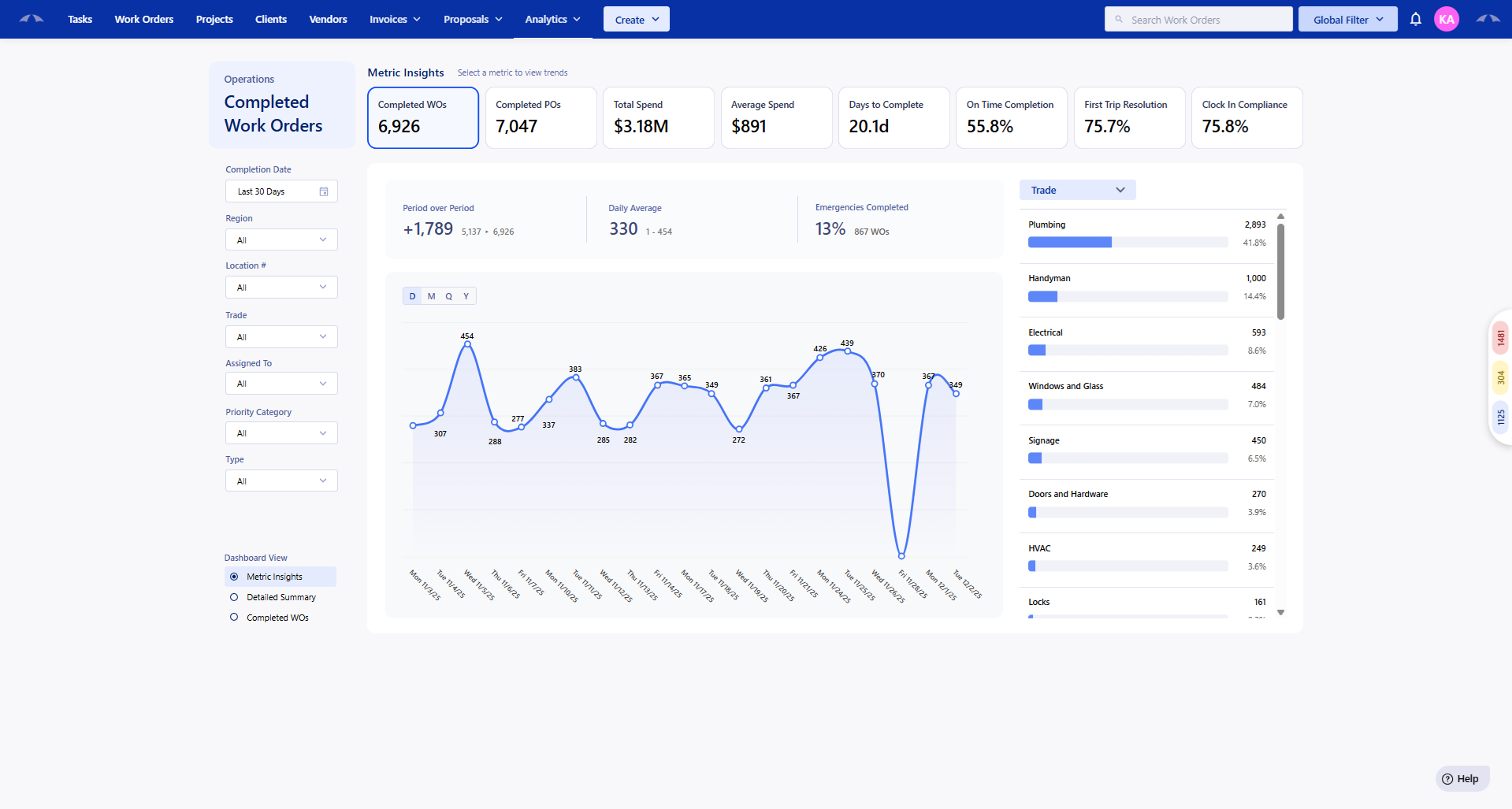
Dashboard First Look:
Opening the dashboard will show you the completed Work Order metrics for your company broken down into 8 categories with a summary to help visualize where your work stands.
The filter on the left let you view the information based on the following:
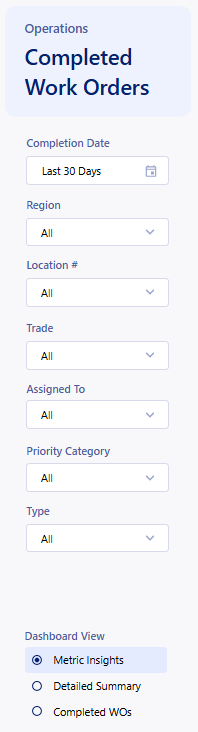 | Starting off, the dashboard will display all Work completed in the Last 30 Days by default. Completion Date - Filters the Work Orders by the date that the Work was completed on. Region - If you have regions set up, this will filter all work performed for locations that are in the selected region(s). Location # - Filter the work by the Location that the Work Order is set for. Trade - Select any trade to show work within the trade. You can filter by multiple trades at once. Assigned To - Allows you to filter the Work Orders down to the user that the Work is assigned to. Priority Category - You can get metrics for your emergency work vs your standard priority work. Type - You can check how your Preventative Maintenance work compares to the Reactive work that is being done. At the bottom of the filters, you are able to change the view layout of the dashboard. The Metric Insights view is the default view that is shown above in the first graphic of this article. The Detailed Summary view will display an exportable list of all of the information that populates the dashboard. This allows you to see exactly what is building up the data that you are seeing on the dashboard. Completed WOs will show you all of the Work Orders that have been completed with a different information set than the Detailed Summary view. This view is also exportable. |
Graph Metric Insights
The main graph of the report shows the trends in metrics for all of the Work Orders that were completed within the filters constraints. Clicking between the metric insights will update the graph to represent the trend.
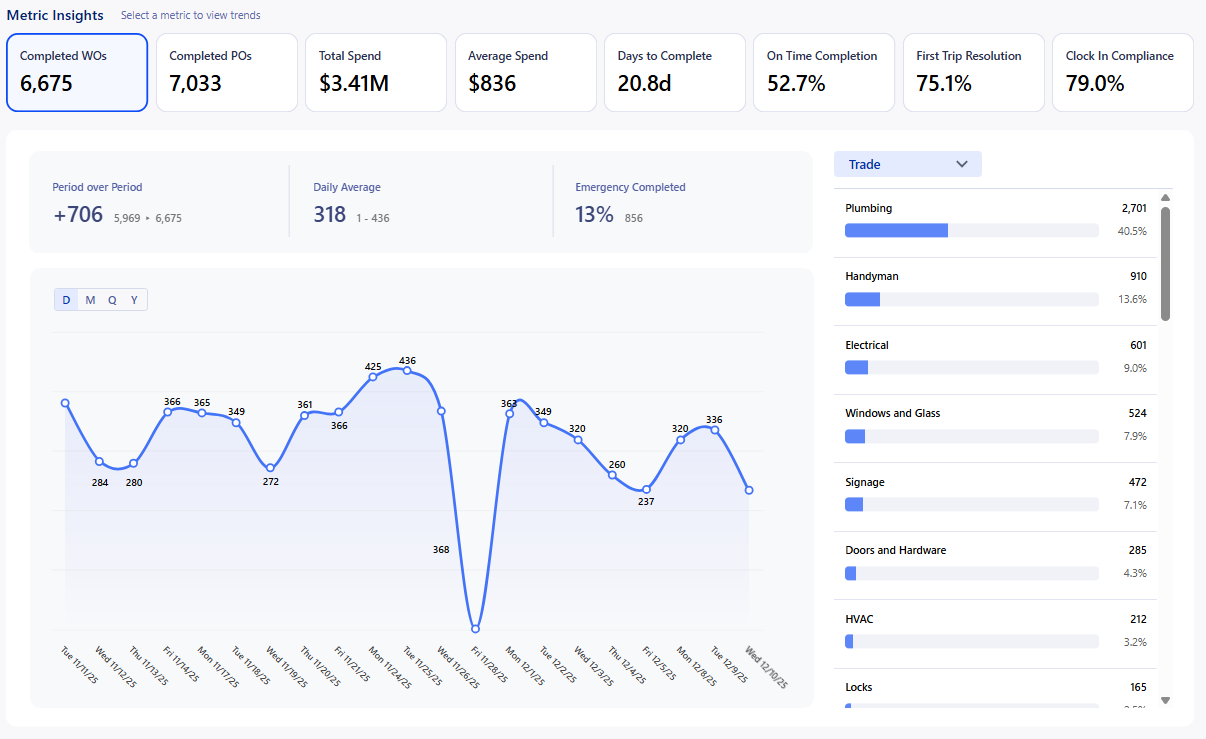
- Completed Work Orders - Count of Work Orders completed.
- Completed Purchase Orders - Count of completed Purchase Orders.
- Total Spend - Sum of vendor invoice totals.
- Average Work Order Spend - Average total spend per Work Order.
- Average Days to Complete - Average days between Work Order Date and Work Order Completion Date.
- On Time Completion - Checks if Work Order Completion Date is before or the same as the Complete By date.
- First Trip Resolution - Checks if Work Order was completed in 1 trip. If there are no trips on the Work Order, value will not calculated against first trip resolution.
- Clock In Compliance - Checks the number clock in/out records divided by the number of trips completed.
Each filter can be applied to each metric insight to help you dive deep into your completed Work Order trends. These Metric Insights are only available in the 'Metric Insights' dashboard view.
Dashboard Category Filter
The Category filter is available in the 'Metric Insights' Dashboard View. These filters display additional information based on each category per the Metric Insight that is selected and displayed in the graph. You can select the info in the Category Filter to apply the filter to the dashboard and give a more detailed look at that specific category.
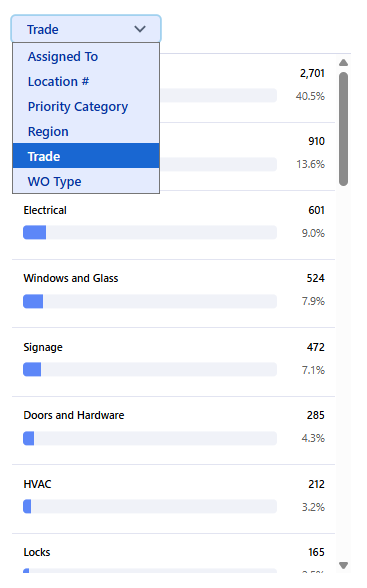 | Assigned To - Breaks down the Work Orders by the user that is set as the Assigned To. Shows the total amount of closed Work Orders, and the % of the total. Location # - Gives the total number of Work Orders closed for the locations that the Work Order is set for. Priority Category - Shows the Work Order breakdown by the priority that is set, Standard, High, and Emergency. Region - Shows all Work Orders for each region. Any Work Order set for a location that is assigned to a region will show here. Trade - This is the default category that shows. Breaks up each Work Order by the trades that are assigned. When a Work Order is assigned to multiple trades it will only pull the first trade set. WO Type - This filter will help differentiate between Reactive and Preventative Work, or any other type that you use within the app. |
Was this article helpful?
That’s Great!
Thank you for your feedback
Sorry! We couldn't be helpful
Thank you for your feedback
Feedback sent
We appreciate your effort and will try to fix the article