Table of Contents |
Service Requests:
Service Requests can be sent by users that have the Service Request permissions. Service Requests allow you to send out details of a job to multiple vendors to allow them to bid on pricing to take the job. Once responses have been submitted, you will be able to select a bid to create a purchase order for the vendor that you select.
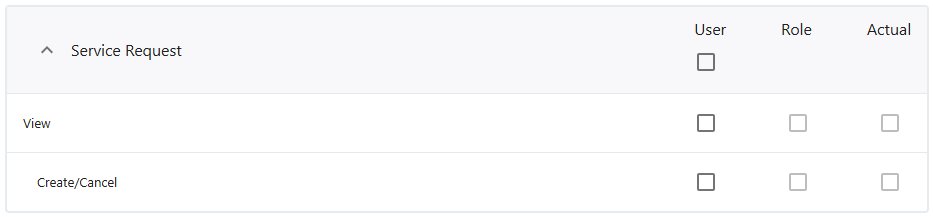
Creating the Request
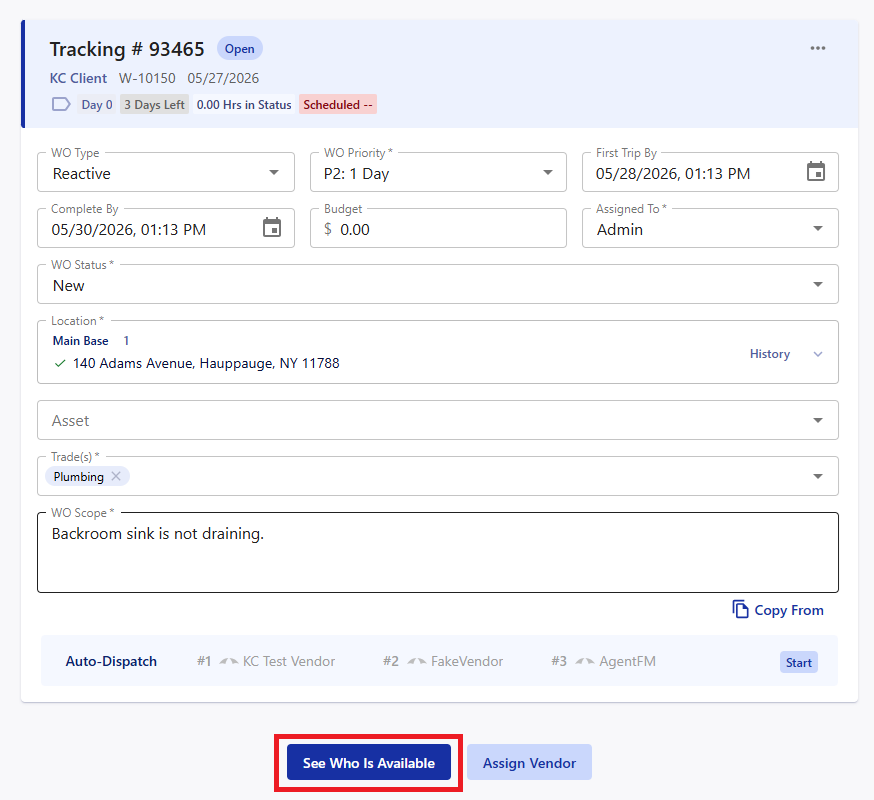
Our 'See Who Is Available' button can be found in work orders and starts the Service Request. The button is at the bottom of the Work Order details and is next to the 'Assign Vendor' button which dispatches a vendor directly.
The details of the work order will automatically fill in the related fields when building a request. You will have to input the costs that you want for the services you are requesting. This includes an NTE (Not To Exceed), Travel Rate, and an Hourly Rate.
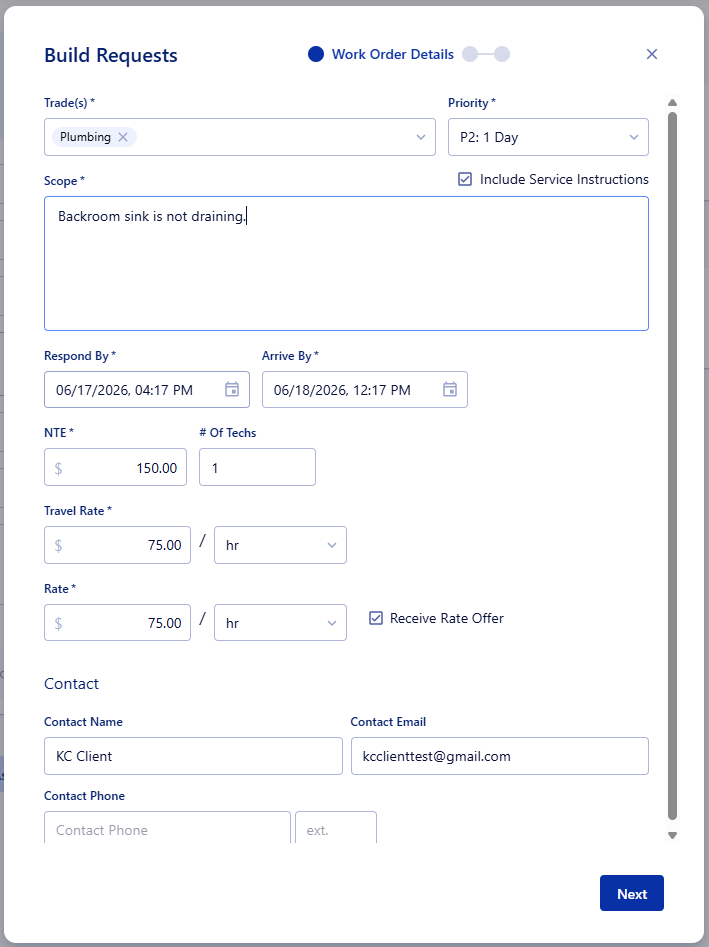
Choosing 'Receive Rate Offer' allows the vendors to input their own pricing for the job when they submit their response. Fill in your contact information and we can move onto the next step.
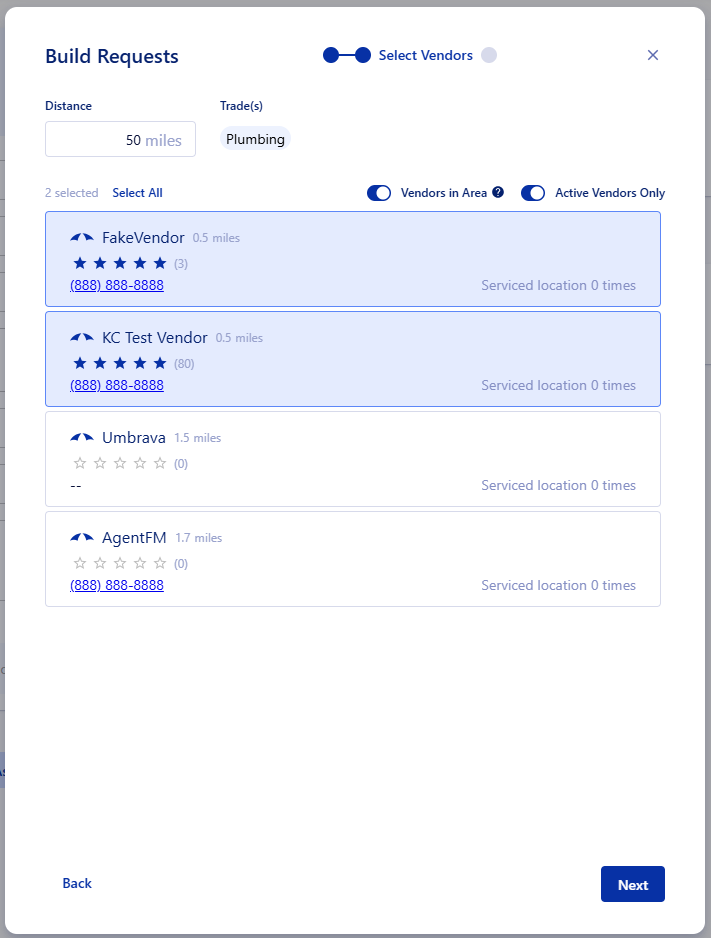
The next step is where you can select the vendors to send the request to. The filters allow you to find specific vendors that fit the needs of your work order. Once at least one vendor is selected, we can move on to review all of the information of the Service Request.
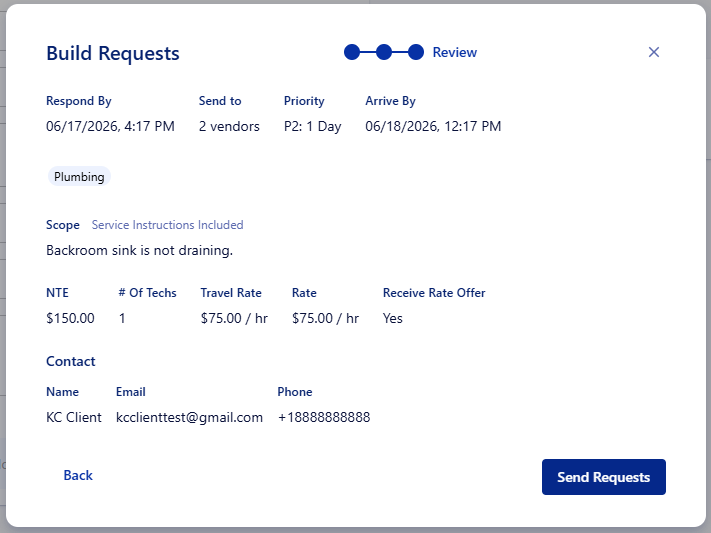
Once reviewed, the 'Send Requests' button will send out the service request and you can wait until responses come in!
Responding to a Service Request
The vendor will receive an email for the service request with the information that was given in the request with the option to show interest. This will open the app to the service request and allow them to input a response.

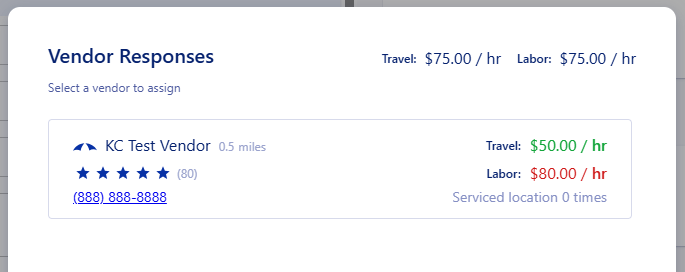
Once that response is submitted, you will be able to see the responses in the work order that the service request is on. Checking the responses will show the pricing differences based on what you entered during creation. You can select your choice from the responses page to generate a purchase order from the service request.
Billing a Service Requested Job
When a proposal or invoice is being made from/for the service requested work, the labor and travel line items will prefill with the accepted rates for the service request.
Was this article helpful?
That’s Great!
Thank you for your feedback
Sorry! We couldn't be helpful
Thank you for your feedback
Feedback sent
We appreciate your effort and will try to fix the article