Table of Contents |
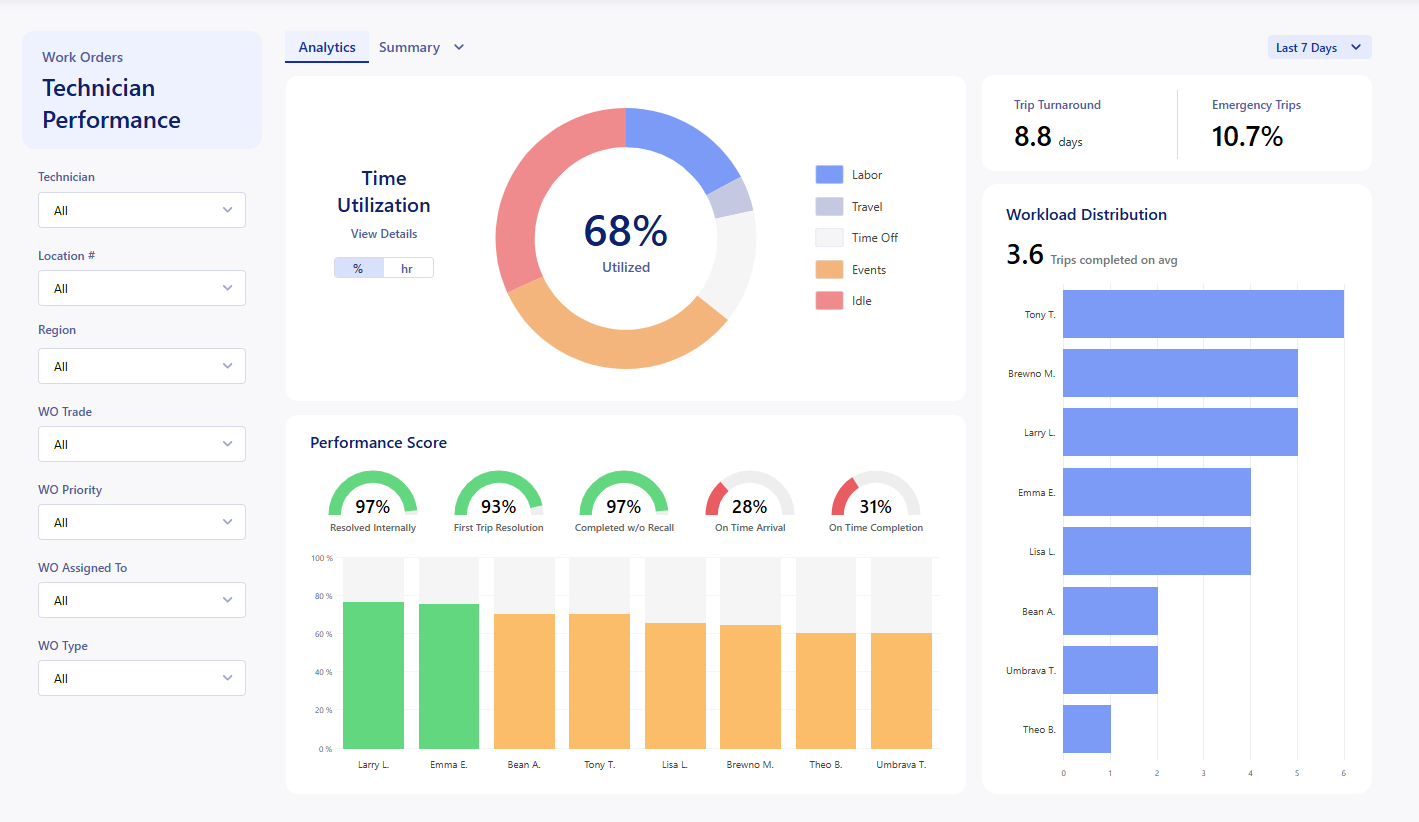
The Technician Performance Dashboard enables you to understand the utilization of your technicians and provides metrics to help you optimize your use of their time. The main use of this report is to get a breakdown of the activities that your technicians are handling within the app, and find trends in trip/work order completion. This data updates live every time the dashboard is loaded.
This report is available to any company but is powered with the Internal Technician feature.
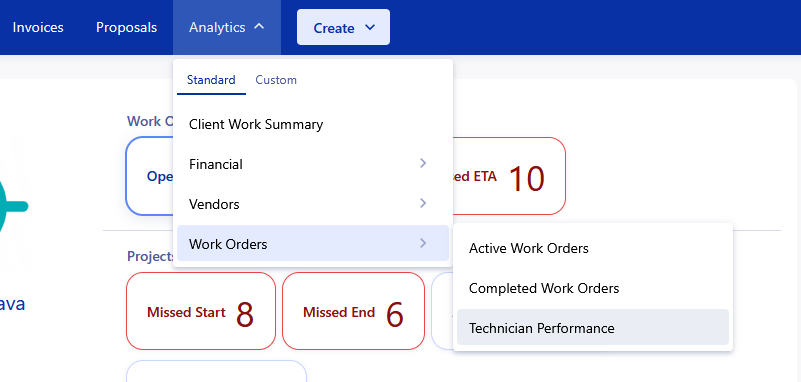
You can find this report by clicking on the Analytics dropdown at the top of the app, and selecting the Vendor Scorecard inside the 'Work Orders' tab. This requires the Analytics → 'View Work Orders' permission.
Filters:
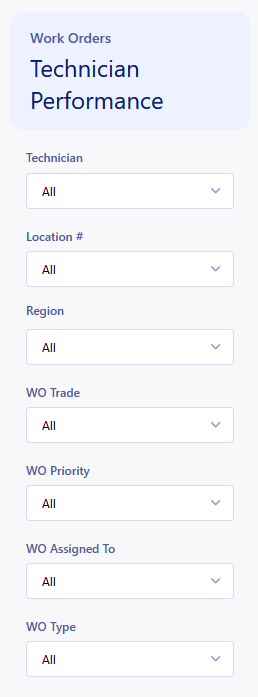 | You can apply filters to the dashboard to refine what information is displayed. All of the filters allow you to multiselect from the options available. The following filters can all be applied:
|
At the top right of the report, you will see a dropdown option that defaults to 'Last 7 Days'. This filter limits the report to all of the trips that were in the last 7 days. This can be adjusted to show trends over different periods of time.
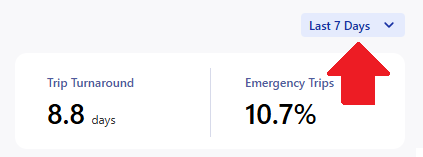
You can filter by Day, Month, Quarter, and Year, with different options in each filter.
Time Utilization:
The Time Utilization section of the dashboard breaks down how effectively your technicians are using their time with Work/Events/PTO that they are assigned. These metrics are powered by the Technician Details information in each technicians profile.
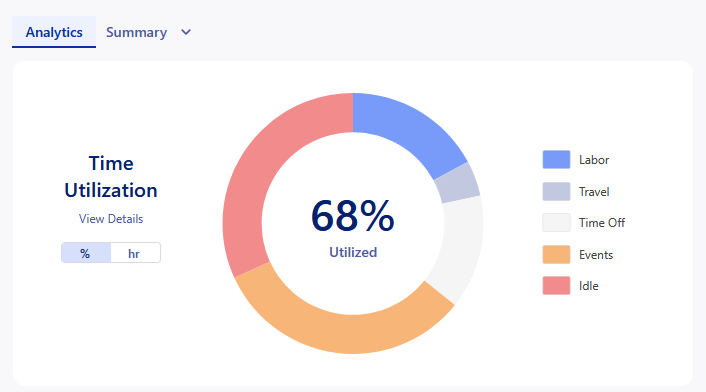
The % Utilized is calculated from the Total Hours of each status except Idle for your technicians / Available Hours set in your Technicians details.
You can hover/click on the different statuses or the different sections in the graph to show the specific percentages/hours for each status.
Clicking on 'View Details' will open up the Utilization page which we will go over in a later section on this page.
Performance Score:
The Technician Performance dashboard measures technicians performance scores based on the following:
- Resolved Internally
- If any Purchase Order trips (excluding Supplier and Fabricator vendor types) were completed for the WO, this counts as not resolved internally.
- First Trip Resolution
- The technician resolved the issue on the first trip to the site. This is determined by checking if the trip number equals the total count of (completed) trips on the WO.
- Completed w/o Recall
- The work order wasn’t recalled after the technician’s trip was completed. If the WO has a recall date and the trip was completed before that recall occurred, this count’s as not completed without recall.
- On Time Arrival
- The technician clocked in at or before the scheduled date/time for the trip.
- On Time Completion
- The trip was completed by the work order’s expected completion date (default based on priority).
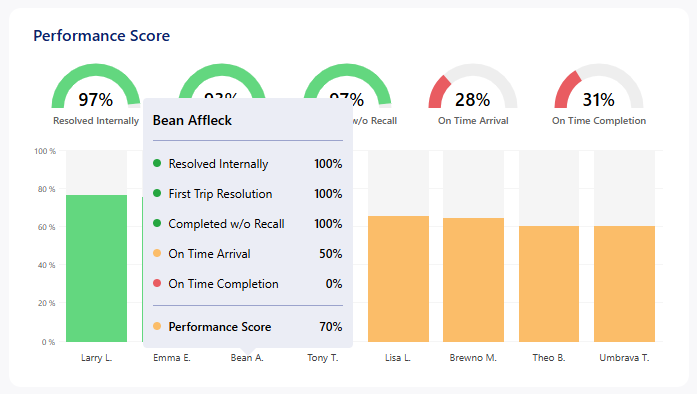
Hovering over a technicians bar will show a more detailed breakdown of that specific technicians metrics. This will automatically show in the performance score breakdown if the filter is set to that specific technician.
Trip Info and Workload Distribution:
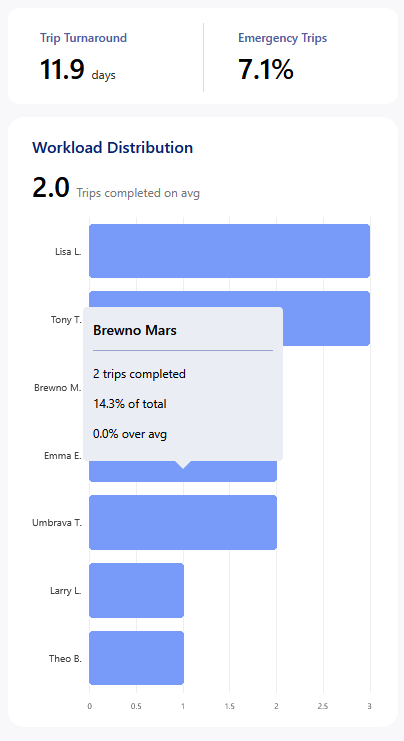
Hovering over the technicians line in the graph will show the details of the Workload Distribution to show the percentages. |
Trip Grid Breakdowns:
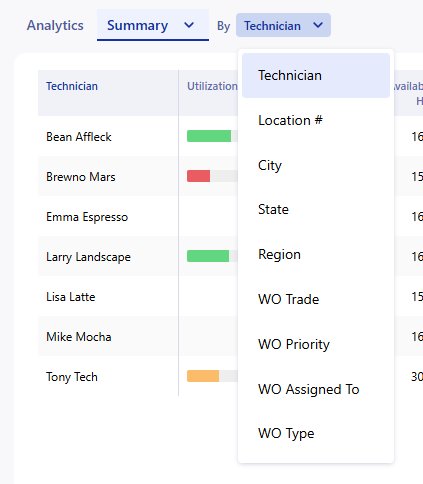
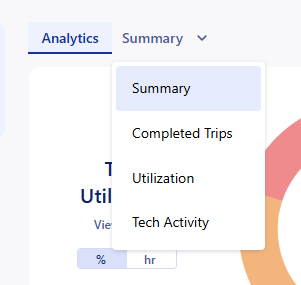 | Clicking on the Summary at the top of the dashboard will open up the option to view:
To navigate back to the graphs, click on the Analytics tab at the top of the dashboard. |
Each tab displays the list of trips with various tables of information that build up to show the data behind the corresponding tab title. Both Summary and Tech Activity have an additional filter to allow you to display the data sorted by the options in the side filter.
Was this article helpful?
That’s Great!
Thank you for your feedback
Sorry! We couldn't be helpful
Thank you for your feedback
Feedback sent
We appreciate your effort and will try to fix the article